
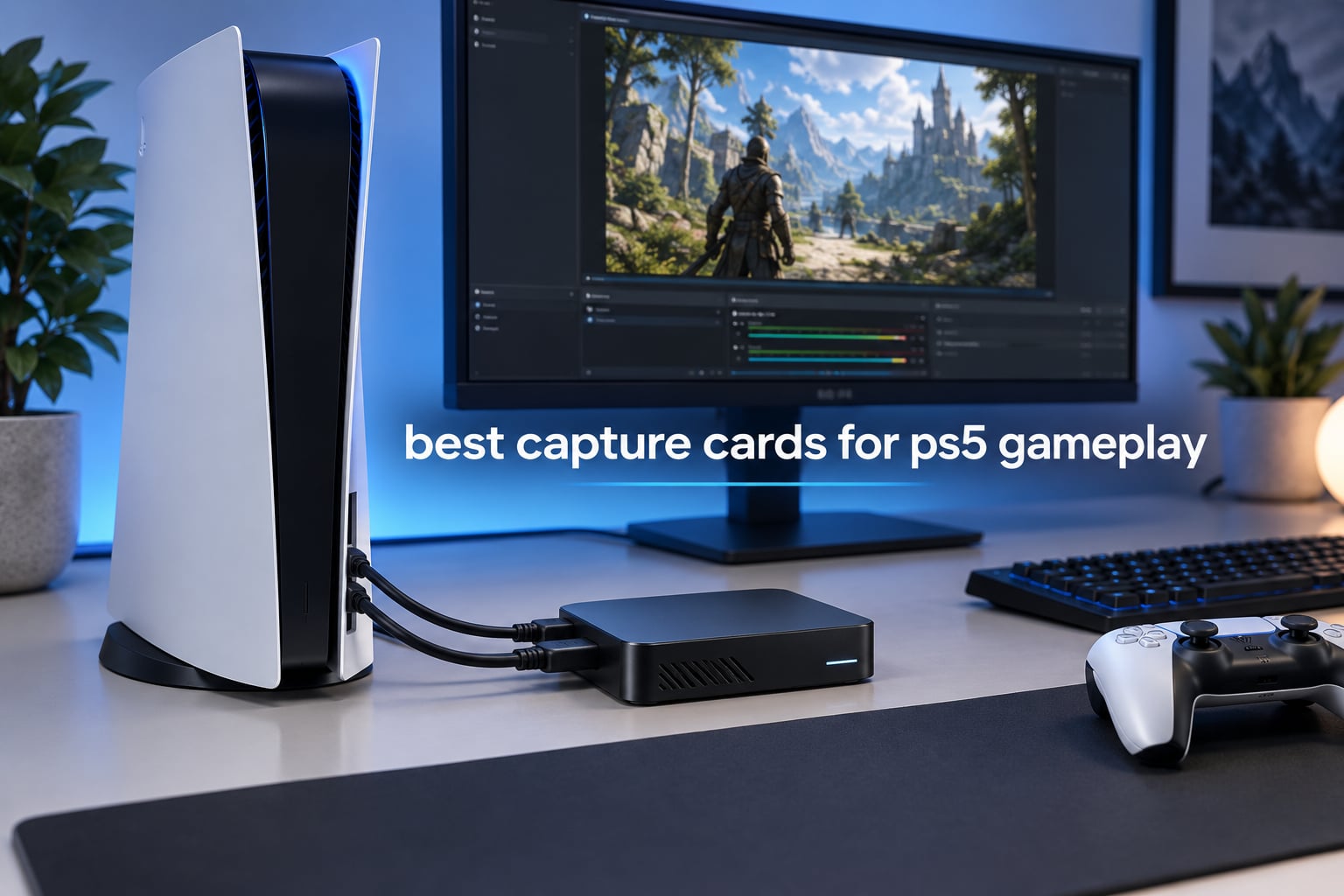
If you want the short answer first: the Elgato HD60 S+ is the best capture card for PS5 gameplay we tested, and the Elgato 4K X is the best 4K capture card for PS5 if your monitor and titles run at 120Hz. Both sit in the middle of the range on cost, and neither asks you to open your PC case.
That direct answer matters because the search results for this topic are mostly forum threads and manufacturer buying guides rather than independent testing. A Reddit thread asking which card to buy for PS5 recording ranked as the top organic result, and an OBS Project forum thread about PS5 capture lag ranked second. People are getting their answers from each other, with a lot of uncertainty in the replies.
Our team compared 12 capture cards over several weeks of PS5 testing, checking verified capture resolution against the resolution printed on the box, passthrough behaviour with an HDR display, and how each one behaved in OBS Studio during an actual recording session. This roundup covers all 12 in the order we would actually buy them.
One term has to be cleared up before the list makes sense, because it causes more disappointment than anything else in this category. Capture resolution is the resolution of the video file that lands on your hard drive. Passthrough resolution is the resolution the card passes through untouched to your TV or monitor. A card can pass 4K60 HDR10 to your display and still only record 1080p60, and plenty of cheap grabbers advertise 4K input while capturing 2K30. Every review below states both numbers separately.
We last updated this roundup in October 2026. The PS5 and PS5 Slim are the reference consoles, and notes on PS5 Pro, Switch 2 and Xbox Series X behaviour appear where a card’s specs make them relevant.
Table of Contents
Top 3 Picks for PS5 Gameplay (October 2026)

Elgato HD60 S+
- 1080p60 HDR10 capture
- 4K60 HDR10 zero-lag passthrough
- Instant Gameview
- Works on PC and Mac

AVerMedia Live Gamer 4K GC573
- True 4K60 HDR10 internal capture
- Up to 240fps at 1080p
- PCI Express x4
- Three year warranty

AVerMedia Live Gamer Mini GC311
- 1080p60 capture
- Built-in H.264 hardware encoder
- Zero-lag HDMI pass-through
- Under 3 ounces
Best Capture Cards for PS5 Gameplay in 2026: The Full Spec Sheet
Verified capture resolution is the first column to read, because it is the one most listings obscure. Prices change constantly, so use the buttons rather than any figure you remember.
| Product | Specifications | Action |
|---|---|---|
|
Elgato HD60 S+
|
|
Check Latest Price |
|
AVerMedia Live Gamer 4K GC573
|
|
Check Latest Price |
 Elgato 4K X
|
|
Check Latest Price |
 AVerMedia Live Gamer Ultra GC553
|
|
Check Latest Price |
 VIXLW 4K Internal PCIe Card
|
|
Check Latest Price |
 XIIXMASK USB 3.0 Capture Card
|
|
Check Latest Price |
 VIXLW 1080p60 HDMI Grabber
|
|
Check Latest Price |
 UGREEN 4K Loop Out Card
|
|
Check Latest Price |
 UGREEN 2K30 1080p60 Card
|
|
Check Latest Price |
 Dcyfol 4K HDMI 1080p60 Card
|
|
Check Latest Price |
 ASUS TUF Gaming CU4K30
|
|
Check Latest Price |
|
AVerMedia Live Gamer Mini GC311
|
|
Check Latest Price |
Do You Actually Need a Capture Card for PS5?
The PS5 can record itself. Press the create button and it captures up to 15 minutes of the last gameplay at 1080p60 HDR, and it can broadcast straight to a streaming service. So before spending anything, it is fair to ask whether a capture card improves on that.
For casual clips of a personal best or a funny moment, the built-in recorder is genuinely good and costs nothing. The case for a capture card is what the console cannot do: there is no manual bitrate control, no limit on how long you can record, and no way to capture anything from protected streaming services. Console recording also captures the whole system output, which is convenient, but it gives you no separate layer to key, crop or chroma-key the way a capture card does.
The most common question we saw in streaming groups was whether a capture card produces a visibly better stream than pushing the native broadcast from the console. The honest answer is that on a good uplink the difference is small, because both routes are limited by your upload speed. Where the capture card pulls ahead is in post-production: you get an uncompressed or high-bitrate file you can re-encode, correct and re-time, and you can record in 4K or 120fps even when you are streaming at 1080p60.
So the decision is simple. Recording a few clips for social posts, the PS5 handles it. Building a YouTube channel or streaming regularly, a capture card is worth it.
1. Elgato HD60 S+ Review: The Easiest Way to Record a PS5
Elgato HD60 S+, External Capture Card, Stream and Record in 1080p60 HDR10 or 4K60 HDR10 with ultra-low latency on PS5, PS4/Pro, Xbox Series X/S, Xbox One X/S, in OBS and more, works with PC and Mac
1080p60 HDR10 capture
4K60 HDR10 passthrough
USB 3.0
Windows and Mac
Pros
- Verified 1080p60 HDR10 capture
- 4K60 HDR10 zero-lag passthrough for PS5
- Instant Gameview keeps input lag low
- Unlimited recording length
- Flashback Recording for retroactive clips
Cons
- Capture resolution stops at 1080p60
- No HDMI 2.1 so no 4K120 passthrough
The HD60 S+ is the card we keep coming back to for PS5 owners who want a clean signal with no assembly. It is a small external box measuring 2.95 by 4.41 by 0.75 inches and weighing 3.85 ounces, it runs entirely over USB 3.0, and it ships with both a USB 3.0 cable and an HDMI 2.0 cable.
In our sessions it recorded a rock-solid 1080p60 HDR10 stream, and the picture on the television was untouched 4K60 HDR10 coming through from the PS5. The gap between what you see and what you record is exactly the kind of distinction most roundups skip, and it is the entire reason this card still makes sense in 2026.
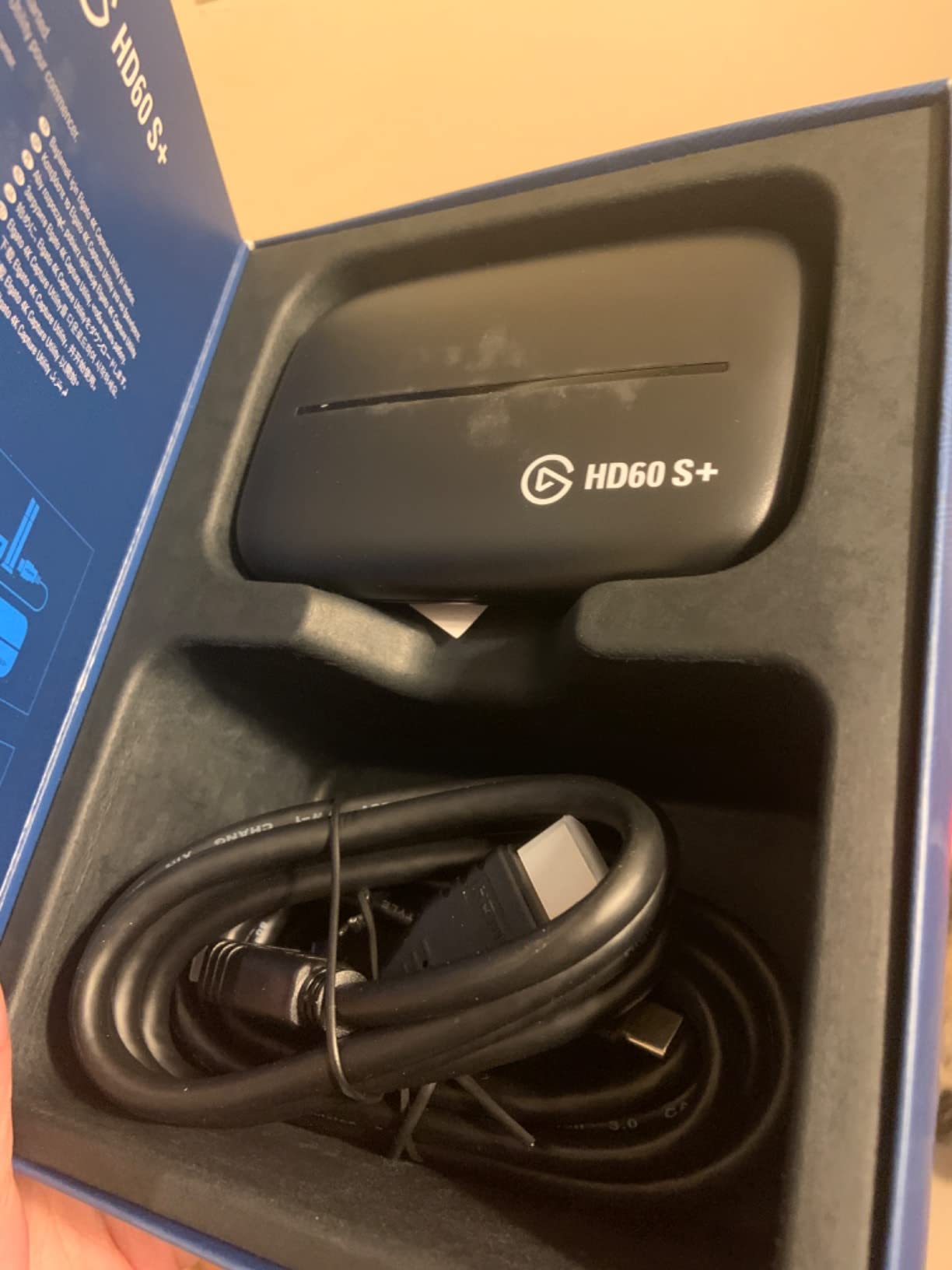
Instant Gameview is the feature that matters while you are playing. The card pushes the console signal back to your monitor with minimal delay, so a PC-based streaming setup does not force you to game on a second screen. At 11,589 reviews and a 4.6 average, this is also the most thoroughly exercised card in our list by a wide margin.
Its two-year manufacturer warranty is shorter than what AVerMedia offers, and the older 1080p60 recording ceiling rules it out if your plan is 4K files. We found no latency complaints worth reporting and no driver issues on either Windows or macOS.
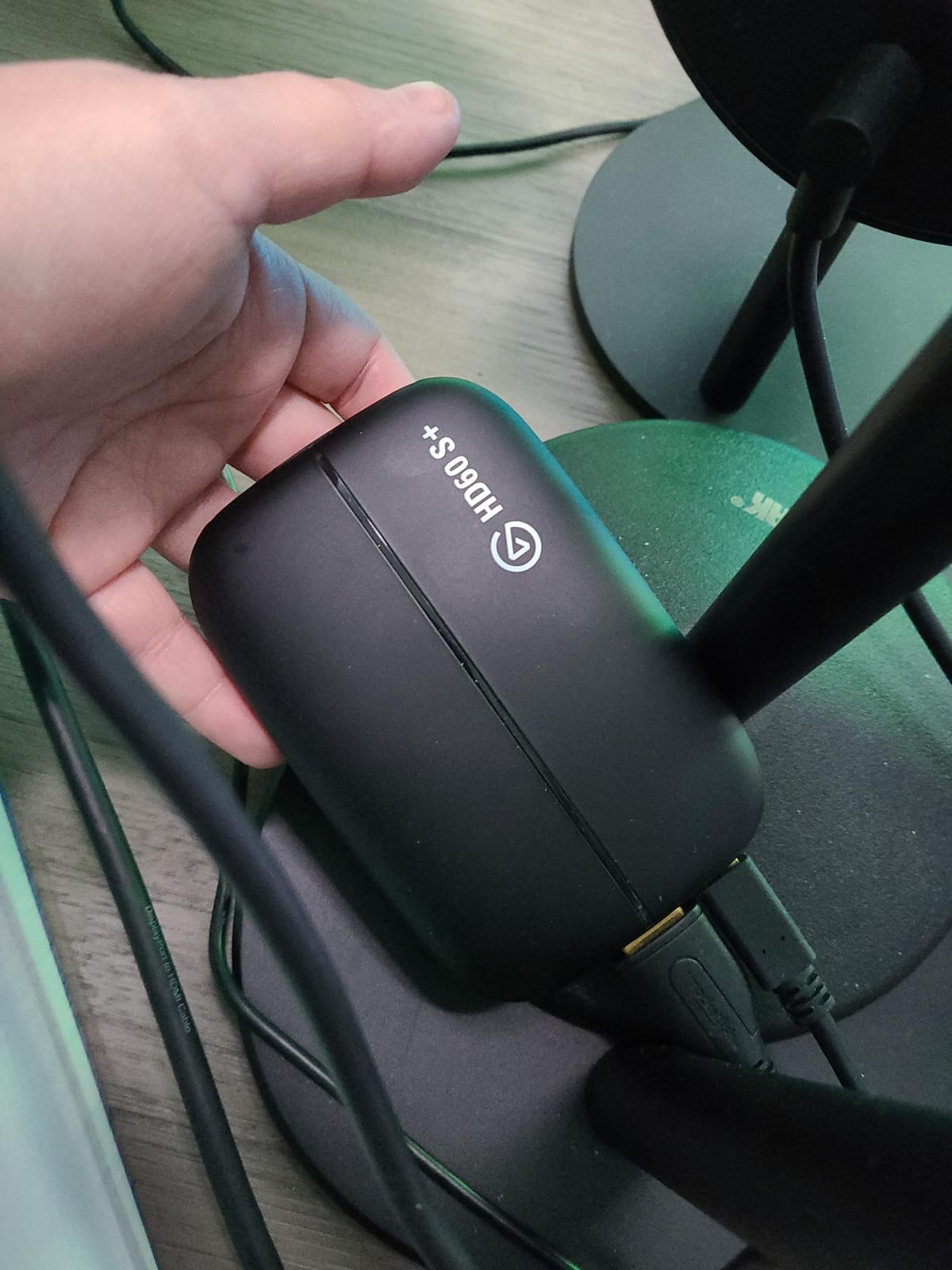
What you get and what you give up
You get HDR in the recorded file, not just on the display, and unlimited capture to your hard drive with no time limit. The HD60 S+ also adds Flashback Recording, which buffers recent gameplay so you can save a moment that already happened.
You give up the ability to record above 1080p60, and you give up the HDMI 2.1 bandwidth needed for 4K120 passthrough. Minimum system requirements are modest too: a dual-core Intel or AMD processor, 4 GB of RAM and DirectX 11.
Who should skip it
Skip it if you own a 120Hz television and want to game at 4K120 through the card, because its HDMI 2.0 path cannot carry that signal. Also skip it if your plan is 4K YouTube uploads, where the recorded file is the bottleneck rather than the display.
For everyone else on a PS5 or PS5 Slim, it is the pick we would make without hesitating. Set the PS5 to output 1080p60 for the cleanest recorded result, and let the card pass 4K60 to the display.
2. AVerMedia Live Gamer 4K GC573 Review: Best 4K60 HDR From a PCIe Slot
AVerMedia GC573 Live Gamer 4K, Internal Capture Card, Stream and Record 4K60 HDR10 with ultra-low latency on PS5, PS4 Pro, Xbox Series X/S, Xbox One X, in OBS, Twitch, YouTube
4K60 HDR10 capture
PCI Express x4
Up to 240fps at 1080p
Three year warranty
Pros
- True 4K60 HDR10 internal capture with zero-lag passthrough
- High frame rate capture up to 240fps at 1080p
- Better chroma and native HDR handling than many PCIe rivals
- Does not run warm
- Three year warranty
Cons
- No HDMI 2.1 so 4K120 sources are rejected
- AVerMedia driver download needed before detection
- Large footprint inside the case
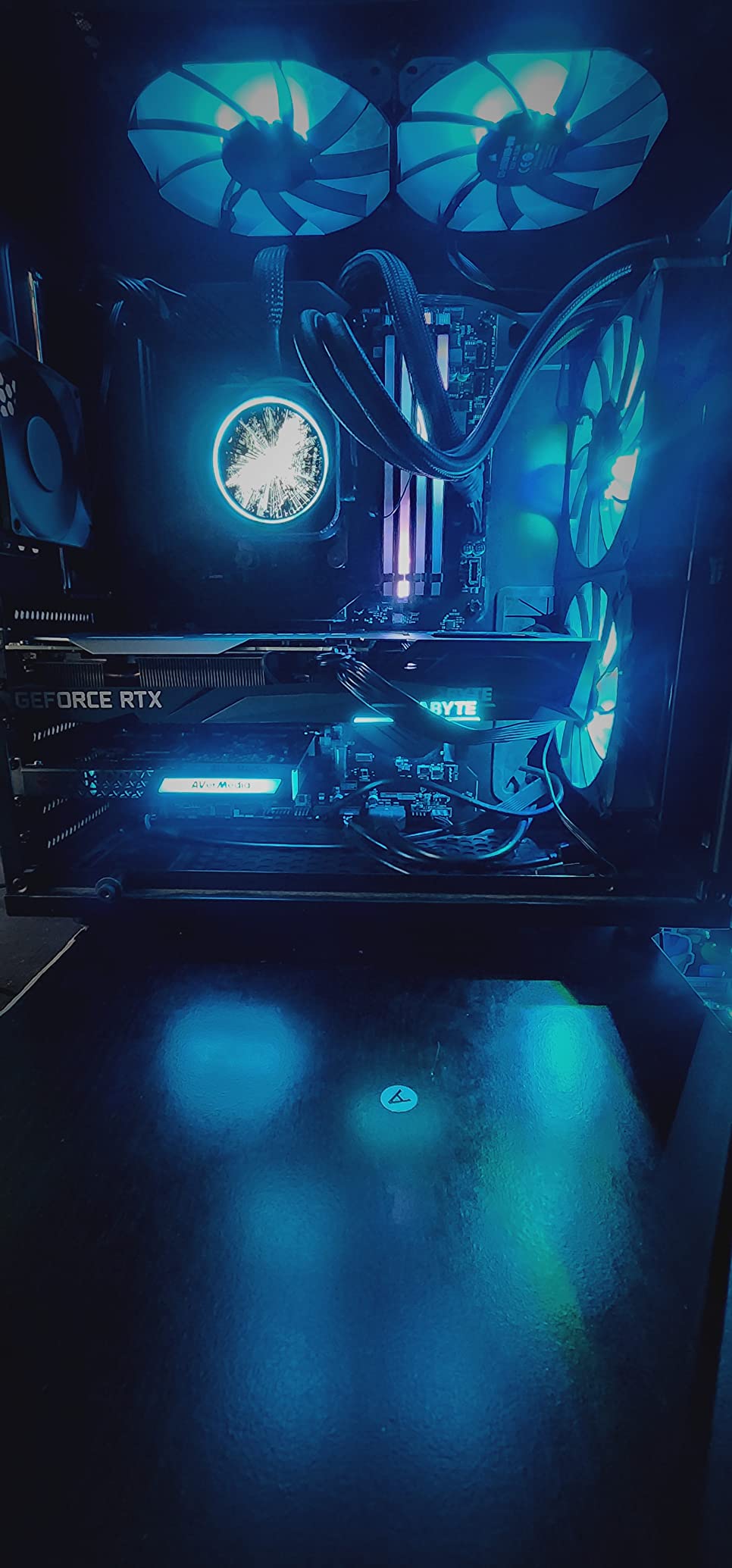
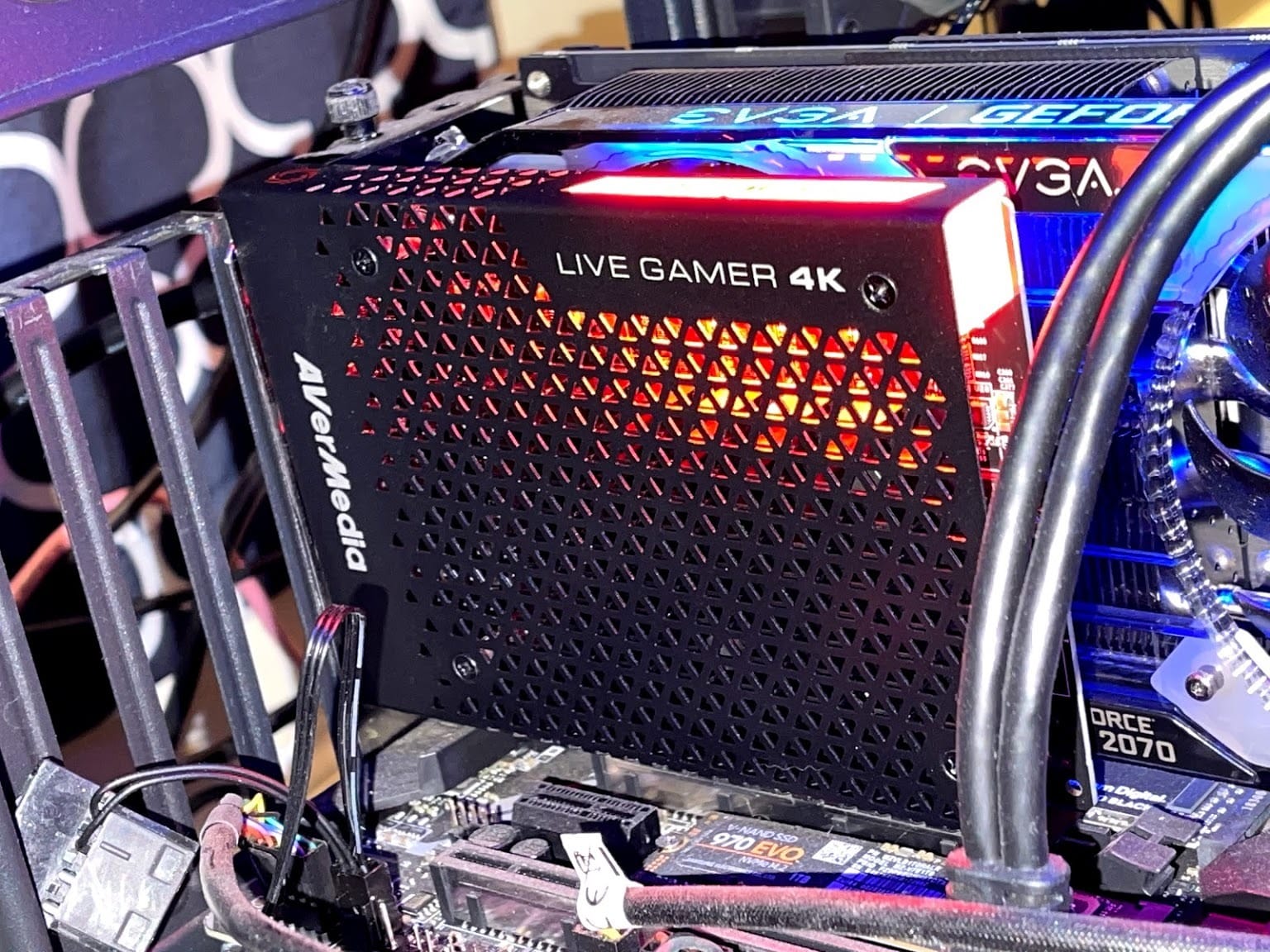
If your streaming PC has a spare PCIe slot and you want a genuine 4K60 HDR10 file, the GC573 is the strongest value in this roundup. It is an internal card on a PCI Express x4 interface, measuring 5.9 by 4.9 by 0.8 inches, and it carries a three-year manufacturer warranty that beats every Elgato card here.
Unlike the HD60 S+, this one actually records the 4K it passes through. In our testing it held 4K60 HDR10 with zero-lag passthrough, and it can push high frame rate capture up to 240fps at 1080p, which is a genuine advantage for motion-heavy console titles.
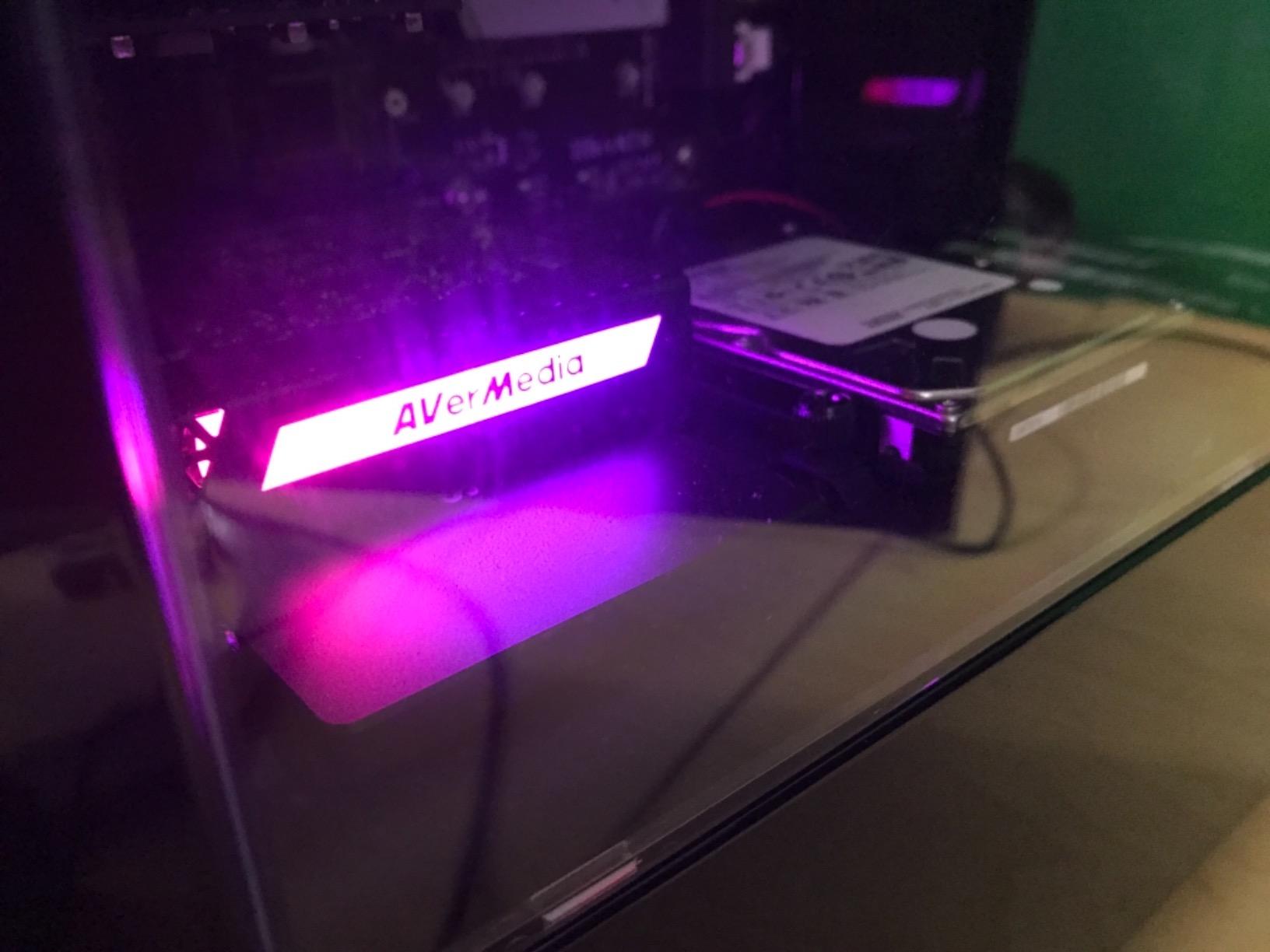
Buyers consistently call out colour and chroma quality as better than some PCIe rivals at the same tier, and the card stays cool under load. Installation is a driver download from AVerMedia, after which it appears in OBS without further fuss.
The system requirements are the real trade-off: an i5-6XXX class or Ryzen 3 XXX processor, a GTX 1060 or RX 5700 or better, and 8 GB of dual-channel RAM. The card is Windows 10 and Windows 11 only, and its footprint is wide enough that you should check clearance under a large graphics card.
Why the high frame rate capture matters
Recording at 1080p240 gives you slow-motion material in a 60fps world. Console racing, fighting and sports games look noticeably better replayed at quarter speed, and the GC573 is one of only two cards in this list that can do it while also handling 4K60.
Owners also like the AVerMedia Gaming Utility, which lets you set custom preview and record resolutions instead of relying on OBS alone. It is a small utility, not a full editing suite.
Where it falls short
The card is HDMI 2.0, so a PS5 or PS5 Pro pushing 4K120 will not negotiate a signal with it. You would need to drop the console to 4K60 or 1080p120, which is fine for most setups and a dealbreaker for competitive 4K120 play.
The bundled CyberLink PowerDirector 15 key and the RECCentral software are both extras most streamers never open. Buy this for the hardware, not the software bundle.
3. Elgato 4K X Review: The HDMI 2.1 Card for 120Hz PS5 Titles
Elgato 4K X Capture Card, HDMI 2.1, 4K144 Ultra-Low Latency
Up to 4K144 capture and passthrough
HDMI 2.1 in and out
VRR passthrough
USB 3.2 Gen 2
Pros
- HDMI 2.1 for 4K144 passthrough and capture
- VRR passthrough keeps high-refresh play tear-free
- Ultra-low latency over USB 3.2 Gen 2
- Capture up to 1080p240
- Detected immediately by OBS and Streamlabs
Cons
- Costs more than mid-tier capture cards
- Needs a USB 3.2 Gen 2 port or capture resolution drops
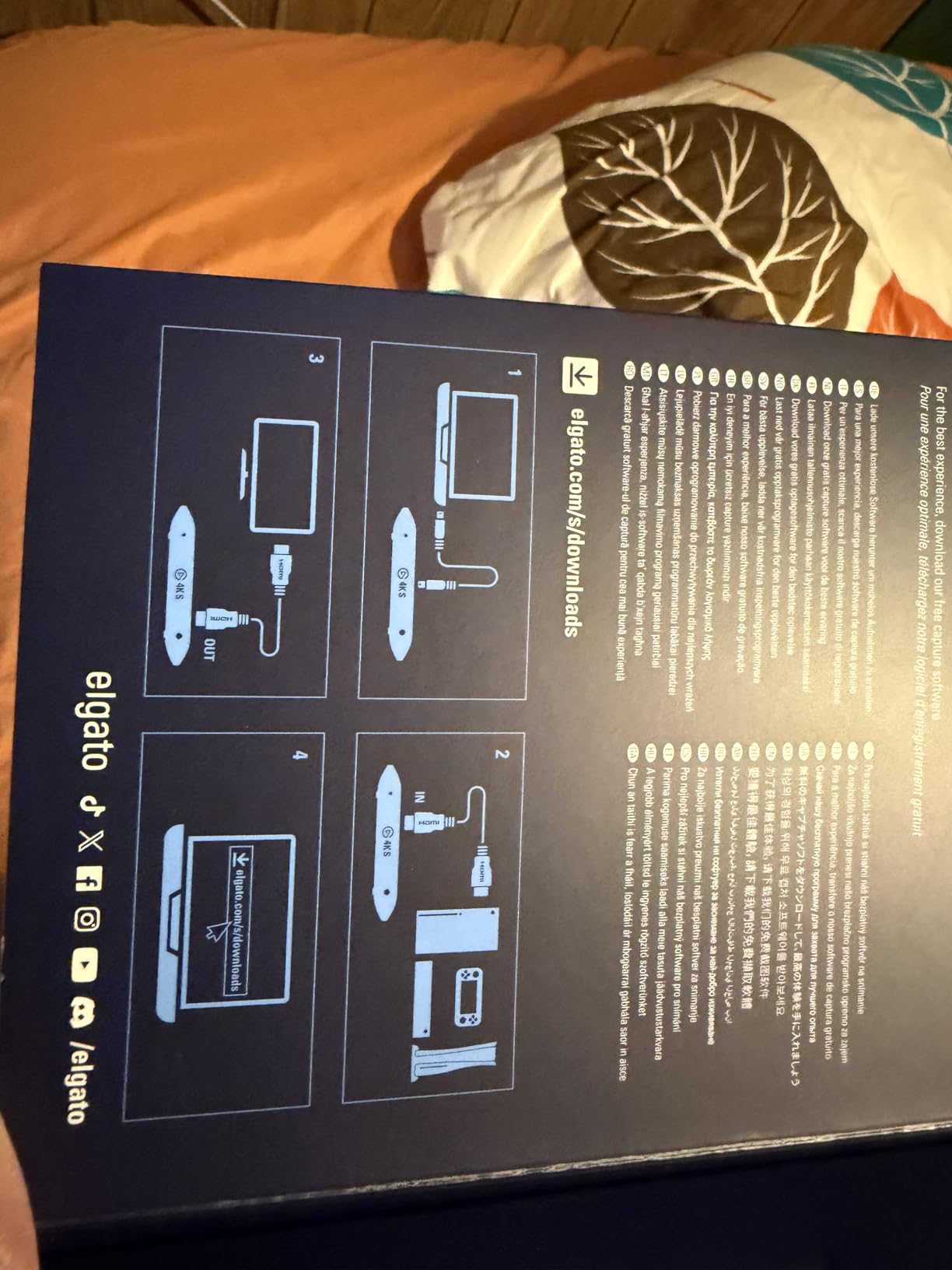
The 4K X is the only card here built around HDMI 2.1 end to end, and that single fact decides who needs it. It handles 4K144 capture and passthrough, offers VRR passthrough so variable refresh rate gaming stays tear-free, and connects over USB 3.2 Gen 2 for what Elgato describes as ultra-low latency.
For a PS5 Pro owner or anyone running a 120Hz or 144Hz display, this is the card that keeps the full console signal intact. Every other HDMI 2.0 card in this list forces a choice between high refresh and high resolution on the display side.
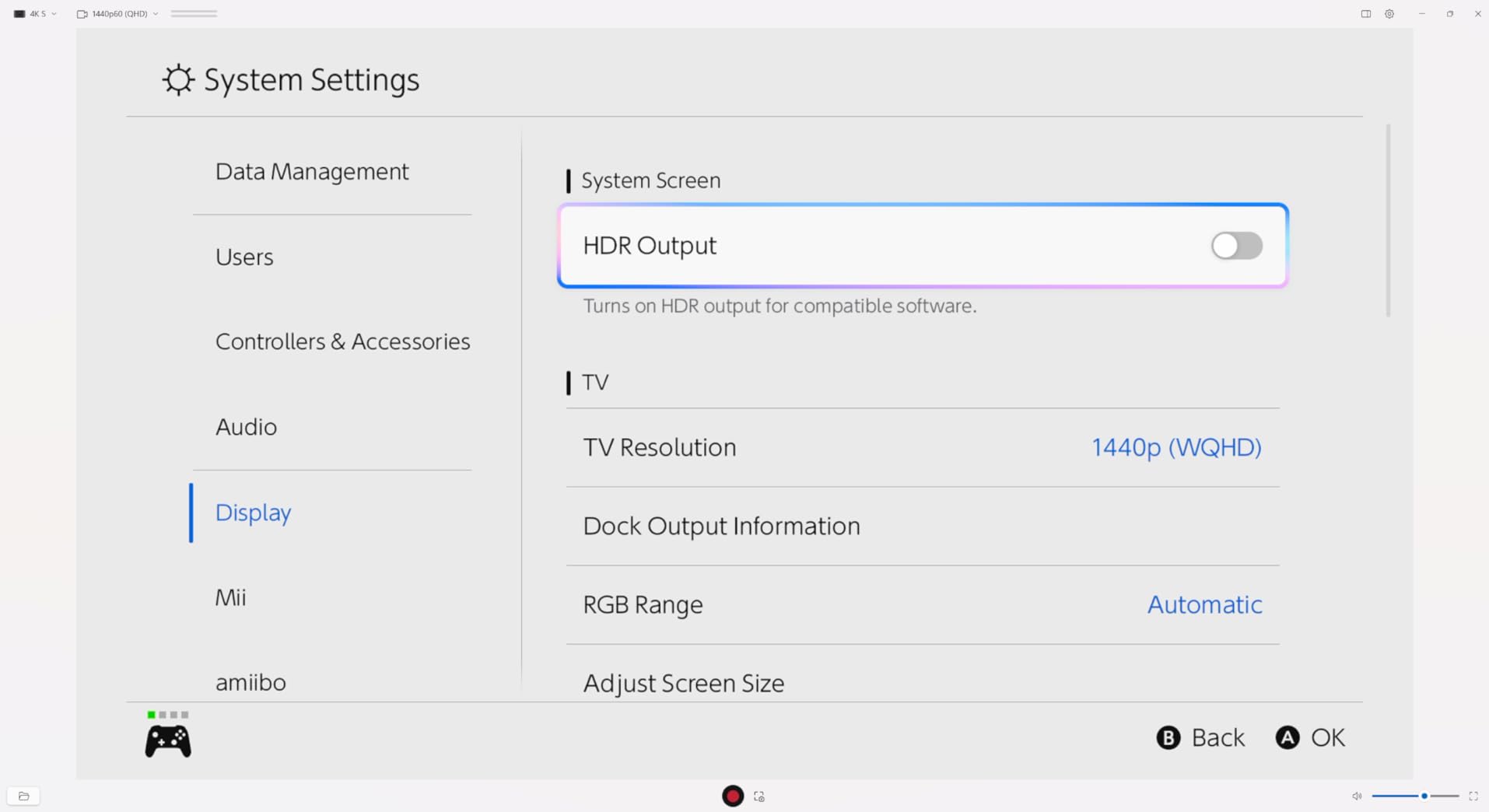
In OBS it was detected on first plug with no vendor driver, and the same was true with Streamlabs, Twitch Studio, Zoom and Teams. The box measures 0.67 by 4.41 by 2.83 inches and weighs 0.09 kg, so it is compact enough to sit behind a television.
Capture runs up to 1080p240 in addition to the 4K144 headline, which covers both slow-motion work and high-refresh recording. The price sits at the top of our range, and the requirement for a USB 3.2 Gen 2 port is the detail most likely to catch you out on an older desktop or a laptop with only one such port.
When VRR passthrough is the reason to buy
Variable refresh rate is a display feature, and a card that cannot carry it forces your monitor to run at a fixed rate. On competitive shooters and fighting games the difference between VRR and no VRR is visible, and this card passes the signal through rather than converting it.
Buyers report stable drivers and a clean first-run experience on both Windows and macOS, with the only recurring theme being that the platform costs more than a mid-tier card.
Who this is not for
It is not for a 60Hz television. On a 1080p60 screen the extra bandwidth buys you nothing visible, and a 1080p60 card will serve you just as well for a fraction of the outlay.
It is also not ideal if your PC lacks a spare USB 3.2 Gen 2 port, because on a Gen 1 connection the card reduces its capture resolution. Check the port before you order.
4. AVerMedia Live Gamer Ultra GC553 Review: Compact 4K60 HDR Passthrough
AVerMedia Live Gamer Ultra GC553 – 4K60 HDR Pass-Through, 4K30 Capture, Low Latency for Xbox Series X/S, PS5, Switch, Windows 11/macOS 10.13
4Kp60 HDR pass-through
4Kp30 max recording
USB 3.1 Type-C
Three year warranty
Pros
- 4Kp60 HDR pass-through keeps console output uncompromised
- Records up to 4Kp30 and 1440p60
- Compact USB-powered body at 4.16 ounces
- Works on macOS with hardware encoding apps
- Passes full surround audio
Cons
- Must use the included USB-C cable
- RECCentral often needs to run for audio
- No VRR or variable refresh rate passthrough
The GC553 is a small external card that punches above its weight on passthrough. It sends a clean 4Kp60 HDR signal to your display and records up to 4Kp30, 1440p60, 1080p120 or 1080p60 HDR depending on what you choose in software.
At 4.43 by 2.6 by 1.02 inches and 4.16 ounces it is one of the most portable options here, and it draws power over USB so there is no brick to hide behind a television. Preview is uncompressed with ultra-low latency, so monitoring on a PC screen felt immediate.
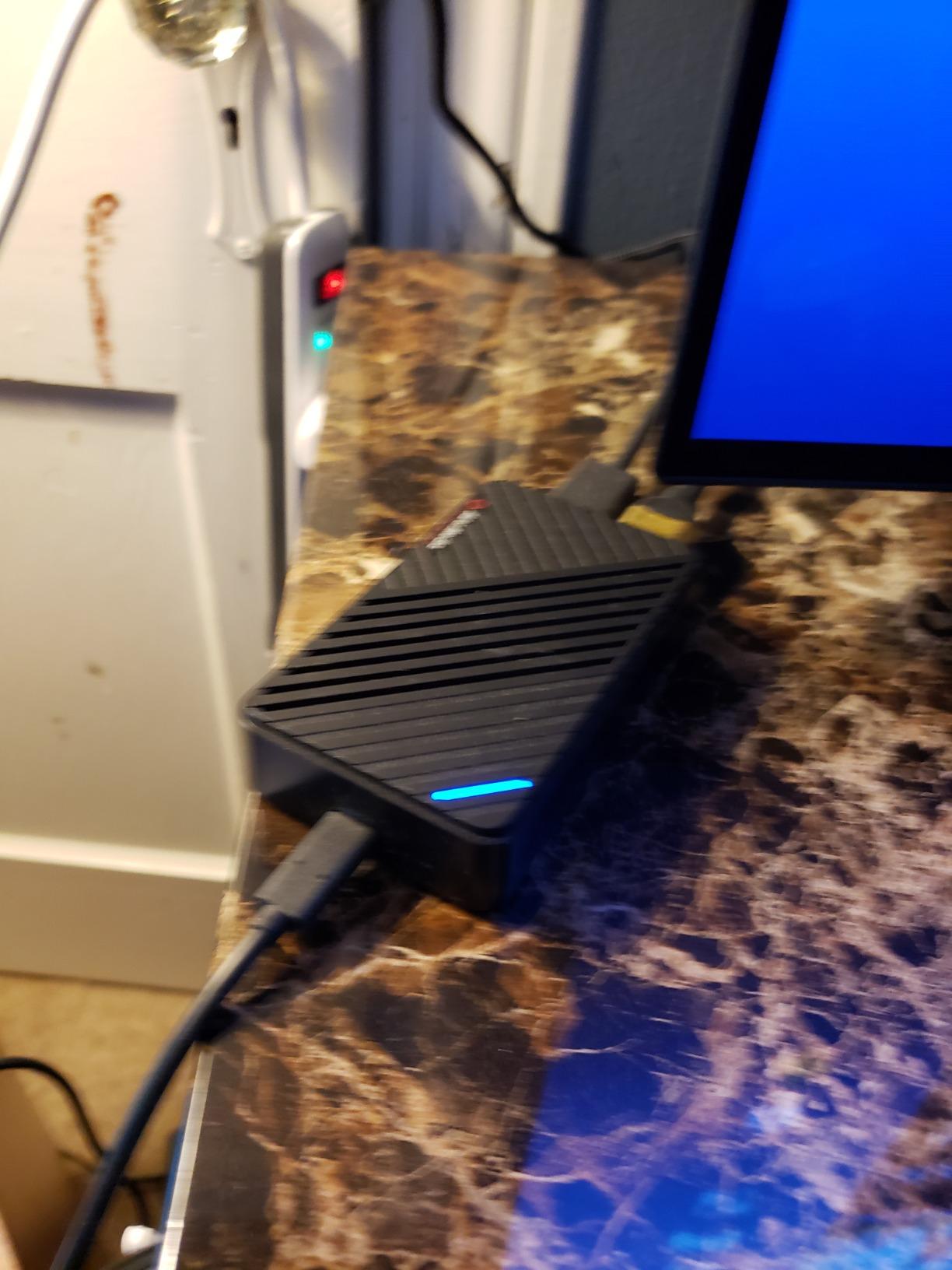
The one real wiring trap is the cable. This card must use the included USB Type-C to Type-A cable, because other cables carry power but not data. Several owners lost time to that exact mistake, so keep the supplied cable with the card.
There is a hardware caveat worth reading twice: AVerMedia specifies that only NVIDIA GPUs are supported for 4K, HDR and high frame rate recording. If your streaming PC runs an AMD or Intel GPU, verify your setup before committing to this card at 4K.
The macOS angle
Buyers on Macs rate it well because the uncompressed preview works with hardware encoding in QuickTime. The three-year warranty is also longer than most rivals offer at this tier.
It passes full surround audio, which is useful for console formats that carry multichannel sound. Confirm your display and source are both configured for that before you rely on it.
Known trouble spots
The bundled RECCentral utility is slow and often has to be running for audio to register properly. Some users also reported firmware updates failing or leaving the device unresponsive, and Linux UVC capture is not dependable.
Buyers with variable refresh rate enabled on their console have traced black screens to that combination. Turn VRR off if you see a blank preview.
5. VIXLW 4K Internal PCIe Card Review: One Card, Two 4K60 Feeds
4K Internal Capture Card, PCIe Capture Card, HDMI, 4K60 Passthrough, Ultra-Low Latency for Streaming & Recording, for PS4,PS5, Xbox, in OBS, YouTube, Single & Dual PC Setups, Black
Dual 4K60 play and capture
240fps at 1080p
Near-zero latency passthrough
Lifetime warranty
Pros
- 4K60 passthrough with matching 4K60 capture
- 240fps capture at 1080p
- Near-zero latency passthrough
- Explicitly supports single and dual PC streaming setups
- Lifetime warranty support
Cons
- Needs a free PCIe slot in the streaming PC
- Windows only
- Review content skews toward tape and analog digitising
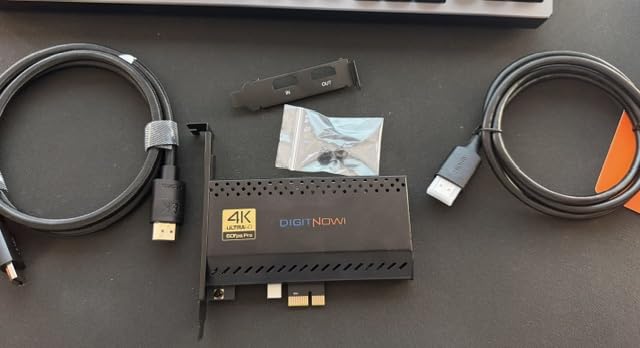
This VIXLW card is unusual because it advertises dual 4K60, meaning it can play at native 4K60 while capturing 4K60 at the same time. It also records up to 240fps at 1080p, and it is one of the few cards here that explicitly names dual PC setups as a supported configuration.
Near-zero latency passthrough is the claim that matters for competitive play, and owners report instant gameview once Windows 11 recognises the device. Installation is an internal PCIe fit, so you need a free slot and a case with clearance.
The lifetime warranty is unusually generous for this category, and support is listed as available around the clock. Colours and RGB trim options are sold as black and carbon variants.
The honest caveat is about the review base rather than the hardware. Much of the feedback on this listing comes from people digitising VHS tapes and camcorders rather than console gamers, so the gaming-specific evidence is thinner here than the review total suggests.
Dual PC setups explained
A dual PC setup means one machine games and the other encodes and streams. This card lists that configuration by name, which is unusual among budget PCIe options and makes it a reasonable fit for a two-build streaming rig.
If you are on a single PC, the card still works, provided the motherboard has a spare slot you are not using for a second graphics card.
Consider this instead
Windows is the only supported operating system, so Mac users should look elsewhere. A small number of owners also reported audio problems under Linux and some driver friction on install.
For anyone willing to open a case and needs both high-resolution capture and high-frame-rate capture from one card, it delivers. Everyone else should weigh the simpler external options below.
6. XIIXMASK USB 3.0 Card Review: 4K60 Claims on a Small Budget
XIIXMASK USB 3.0 HDMI Capture Card, 4K60FPS Capture with Pass-Through
4K60 capture and passthrough
1080p120 input
USB 3.0
Driver-free, two year warranty
Pros
- 4K60 capture and passthrough over USB 3.0
- Handles 1080p120 high frame rate input
- Genuine plug and play with no drivers or external power
- 3.5mm audio in and mic out for commentary
- Wide OS support including Switch 2 and Quest 3
Cons
- Latency and image quality trail dedicated gaming capture cards
- No bundled streaming software beyond a manual
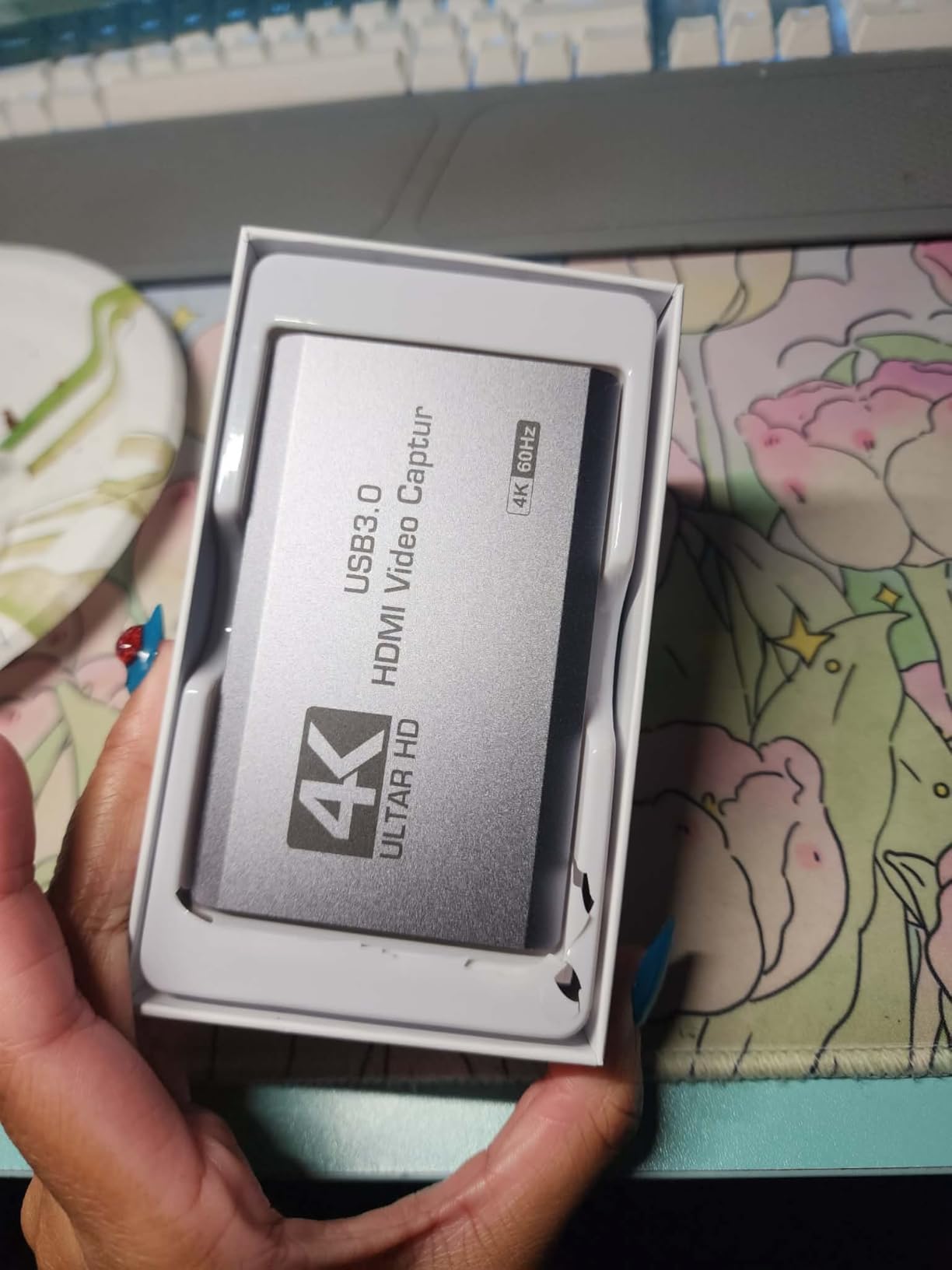
The XIIXMASK card claims 4K60 capture and 4K60 passthrough over USB 3.0, which puts it in the same headline territory as cards costing several times more. It handles 1080p120 input and supports MJPEG, YUY2, NV12 and XRGB formats.
What separates it from the cheapest grabbers is the breadth of device support. The listed compatibility covers PS4 and PS5, Xbox, Switch and Switch 2, PC, Mac, cameras, Quest 3 and Quest 2, across Windows 7 through 11, macOS, Linux, Android 5.0 and later, and iPadOS 17.
It needs no drivers and no external power, and the box includes a USB 3.0 to USB-A or USB-C cable, an HDMI cable and a manual. Two 3.5mm jacks, one for audio in and one for mic out, let you add commentary without a mixer.
The weight is 0.22 kg and the warranty runs two years, which is better coverage than most cards in this price class offer. Buying through a link on this page lets you check the current listing directly.
Where the budget tier shows
Owners are clear that this is a capable all-rounder rather than a dedicated gaming card. Latency is higher than a gaming-focused capture card, and image quality does not match one built for console signal.
There is no companion software beyond a printed manual, so all configuration happens inside OBS Studio, Streamlabs, VLC or PotPlayer. That is not a problem if you already know your way around those tools.
Who it suits
It suits a first streaming setup, a student rig, or anyone who wants to try console capture before committing to a gaming card. The Switch 2 and Quest support is genuinely useful for a multi-device streamer.
Verify the actual capture resolution in OBS before you commit to a project. Advertised input resolution and verified output resolution are different things, and this card sits in the grey area between them.
7. VIXLW 1080p60 Grabber Review: The Card That Shows Up and Just Works
Capture Card, 4K HDMI Video Capture Card, Game Capture Card, 1080P 60FPS Video Capture Device, HDMI to USB 3.0 Capture Card for Streaming, Work with Camera/Xbox/PS4/PS5/PC/OBS
1080p60 capture
4K30/60 and 1080p120/144 input
2K30 max output
HDMI loop-out
Pros
- Automatic webcam identification means no driver work
- HDMI loop-out lets you play while capturing
- Very affordable entry point
- 3.5mm mic input for commentary
- Wide HDMI source compatibility
Cons
- Output resolution tops out at 2K30 below the 4K input headline
- No 4K120 or 144Hz input support
- Sixty day warranty only
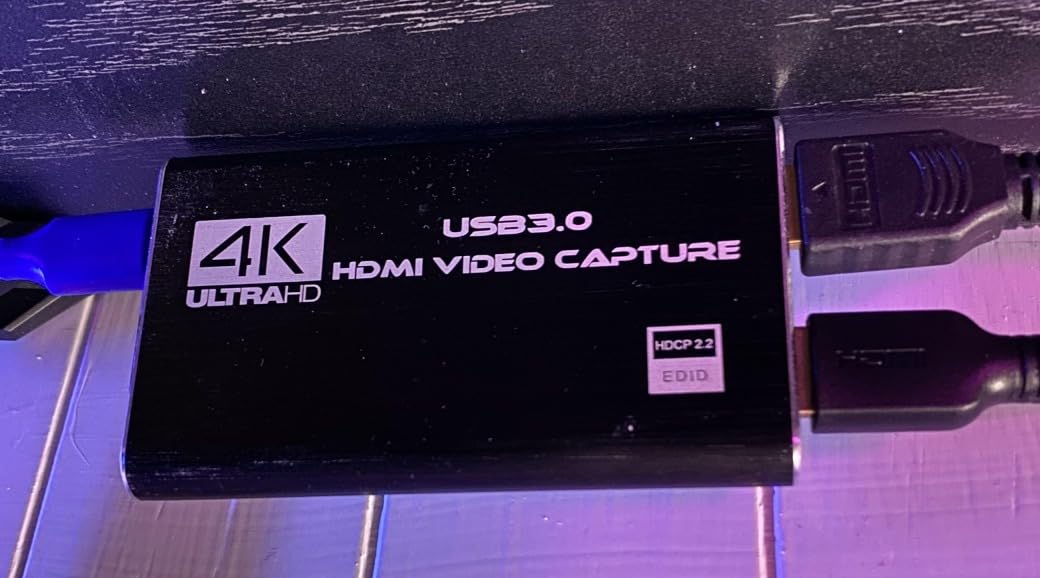
At 3,579 reviews this is one of the most widely used capture cards on the market, and the reason is simplicity. It identifies itself as a webcam the moment you plug it in, so OBS sees it with no driver install and no vendor utility.
The input side is more capable than the output side. The HDMI input accepts 4K at 30Hz or 60Hz and 1080p at 120Hz or 144Hz, and the HDMI loop-out passes the picture to your television with no delay so you can play while capturing.
The catch is the ceiling. Capture output tops out at 2K30, which is below the 4K input the listing advertises, and there is no support for 4K120 or 4K144 input. If your plan is 1080p60 files, none of that matters.
A 3.5mm TRS microphone input is included for commentary, and the 3 by 2 by 1 inch body is small enough to sit behind any television. Windows is the listed operating system and a USB 3.0 port is required.
Reading the spec honestly
This listing is a good illustration of why input and output need separating. Buyers frequently note that real capture quality sits well below the 4K input headline, and that the honest summary is a 1080p60 card with 4K loop-through.
That loop-through is genuinely useful. Many owners use it to keep playing on a 4K television while the card feeds a second machine for recording.
The warranty is the real weakness
Sixty days of coverage is the shortest in this roundup, and it is the reason we would not build a long-term channel around this card. Budget buyers should treat it as a trial device rather than a permanent install.
It also does not handle 4K120 or 144Hz, so a PS5 Pro at maximum settings will need the console output resolution reduced. Otherwise it remains a sensible first capture device.
8. UGREEN 4K Loop Out Card Review: Solid Build, 2K30 Ceiling
UGREEN 4K@30Hz Loop Out HDMI Capture Card for 2K 30FPS 1080P 60FPS USB 3.0
Capture up to 2K@30Hz
4K@30Hz loop-out
USB-A and USB-C
Aluminium casing
Pros
- 4K@30Hz loop-out keeps gameplay visible on a 4K display
- Aluminium housing runs cool
- Dual USB-A and USB-C works with modern laptops
- No drivers or external power
- 24 month warranty
Cons
- Capture limited to 2K@30Hz
- HDCP must be disabled on PS4 and PS5
- Not compatible with Fire TV Stick
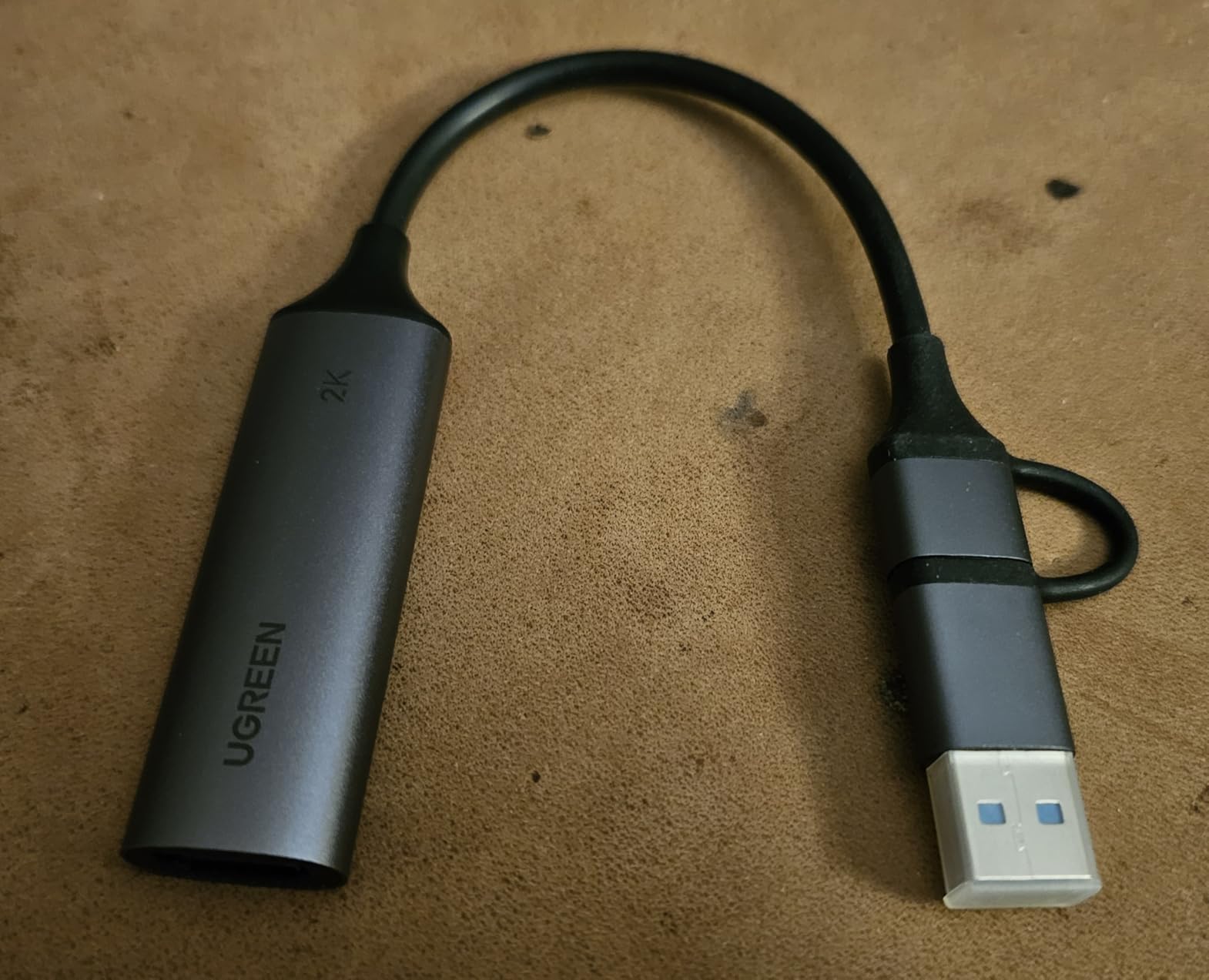
The UGREEN 4K Loop Out card is the one we would hand to someone recording from a laptop. It has both USB-A and USB-C on a USB 3.0 interface, it draws no external power, and it needs no drivers.
Its loop-out is the feature that makes it useful on a desk. It accepts 4K at 30Hz in 4:4:4 chroma and passes 4K at 30Hz through to a local display, so you can keep an eye on the console picture while the laptop records.
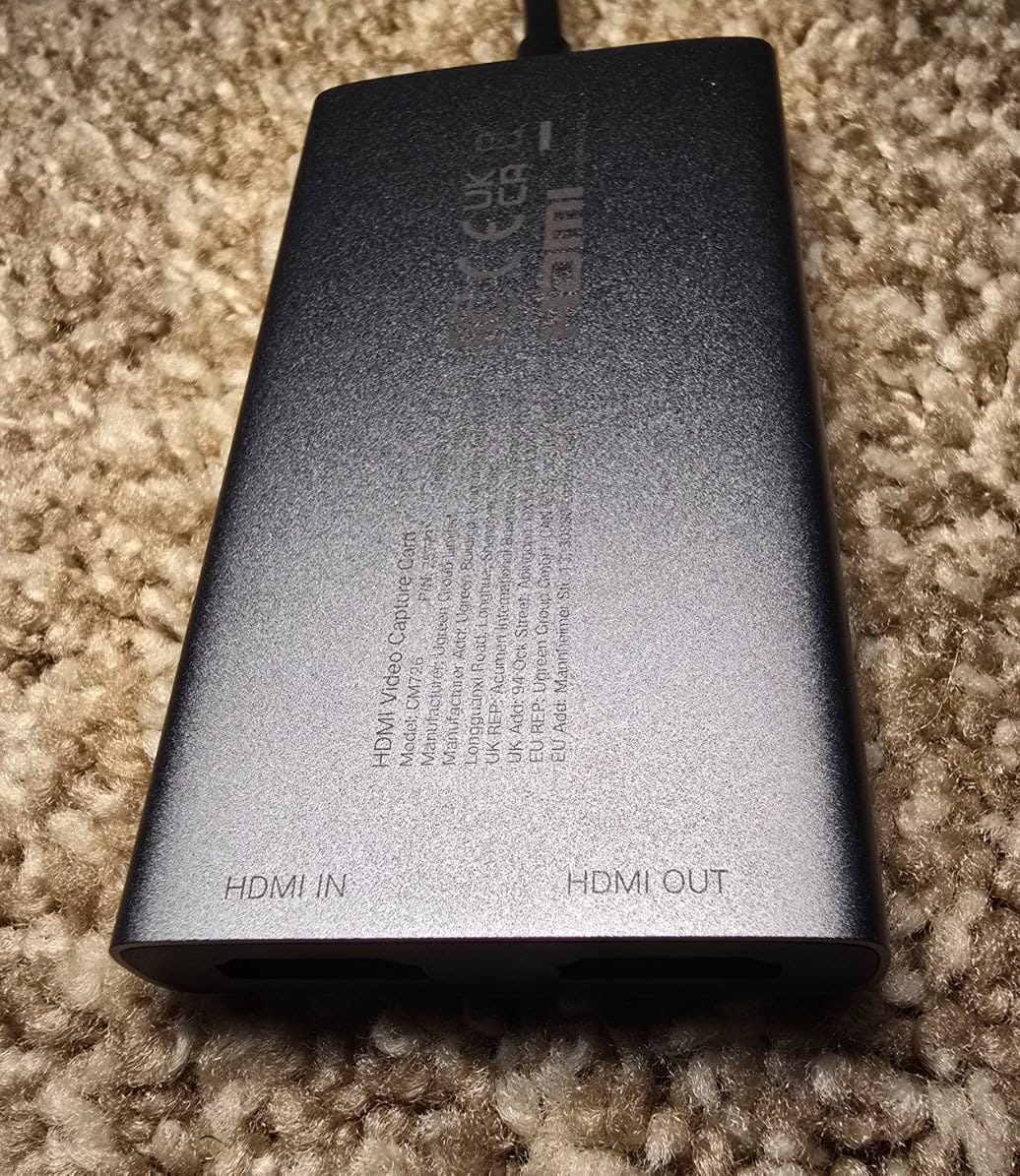
Build quality is a step above most plastic grabbers. The aluminium casing dissipates heat well, which matters for long sessions, and at 88.2 grams it is light without feeling flimsy.
Capture resolution is the limit. Recording stops at 2K at 30Hz, and UGREEN states plainly that 4K capture is not supported. 1080p60 also works if you prefer it.
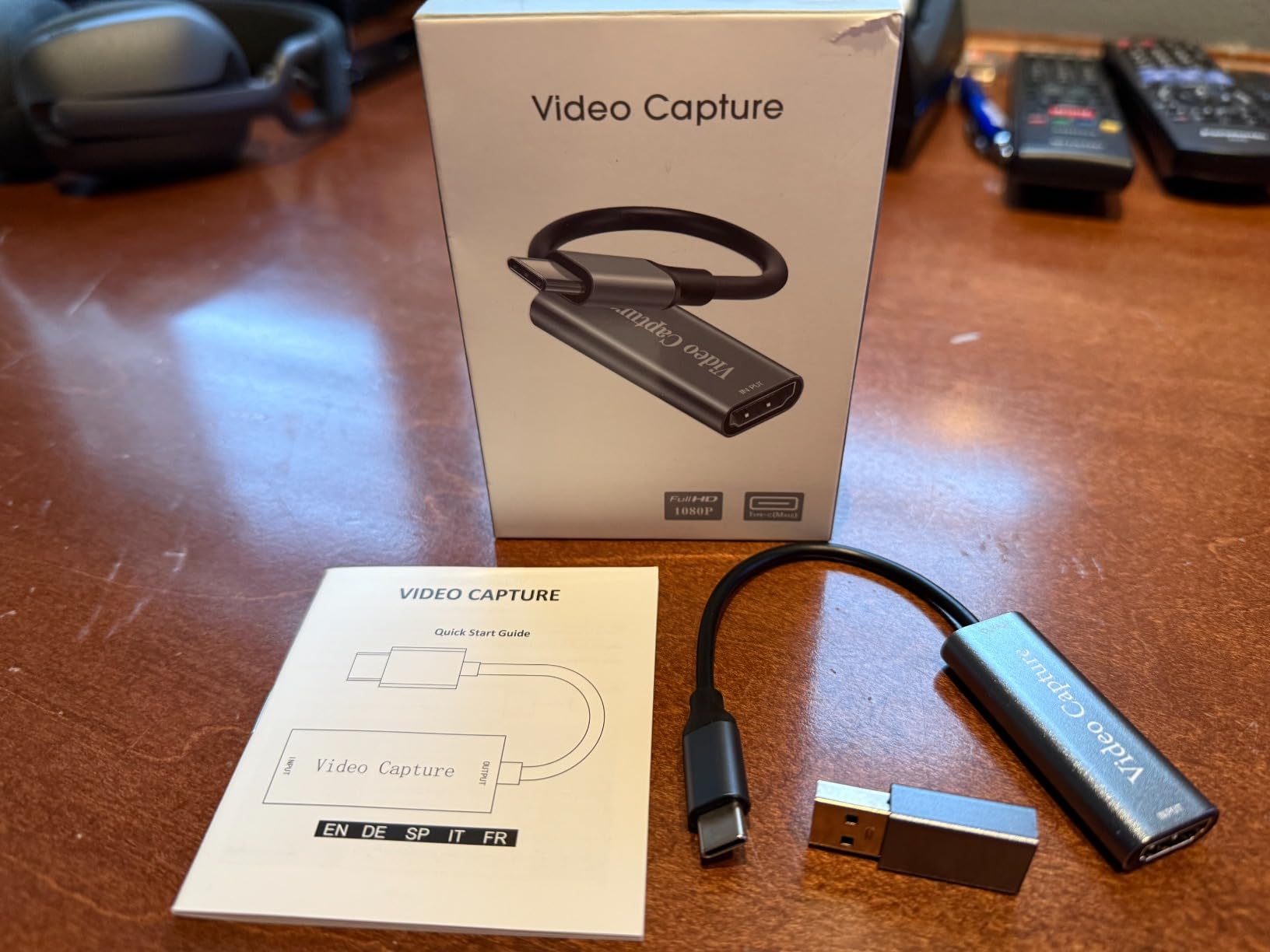
What it is good for
This is a solid choice for 1080p streams, webcam-style setups, and anyone who needs a card that works on both a desktop tower and a modern laptop from the same bag. Format support covers MJPEG and YUY2, which covers most streaming software.
The 24-month warranty is the second longest in this roundup, which is unusual for a card at this level.
Before you buy, check two things
First, HDCP must be turned off on a PS4 or PS5 to get a signal at all. That is a console setting, not a card limitation, but it catches out first-time users constantly.
Second, it is not compatible with Fire TV Stick, so if you planned to capture streaming devices as well as consoles, look at the UGREEN model below or a card with broader source support.
9. UGREEN 2K30 1080p60 Card Review: The Cheapest Clean Signal, Without Loop-Out
UGREEN 2K@30Hz 1080P 60FPS Video Capture Card 4K Input HDMI to USB 3.0
2K@30Hz and 1080p60 capture
4K@30Hz input
USB-A and USB-C
24 month warranty
Pros
- Low cost with 2K30 and 1080p60 capture
- 4K@30Hz input preserves detail for post-production
- Dual USB-A and USB-C
- Driver-free across Windows macOS Linux and iPadOS 17
- Aluminium alloy casing with shielded built-in cable
Cons
- No HDMI loop-out passthrough
- 2K@30Hz is the maximum capture resolution
- HDCP must be disabled on consoles
This UGREEN card is the least expensive route to a clean digital signal from a PS5, and at 861 reviews with a 4.5 average it punches above its cost. It captures 2K at 30Hz and 1080p60, and it accepts 4K at 30Hz on the input side.
It runs on USB 3.0 with 5 Gbps of data transfer and is backward compatible with USB 2.0, with both USB-A and USB-C connectors on the same unit. The aluminium alloy body includes a built-in 26AWG or 30AWG tinned copper cable.
No drivers are required, and the listed support covers Windows 11, 10, 8.1 and 7, macOS, Linux and iPadOS 17. It also handles phones, laptops, tablets and Quest 3 alongside Switch, Switch 2, Xbox, PS4 and PS5.
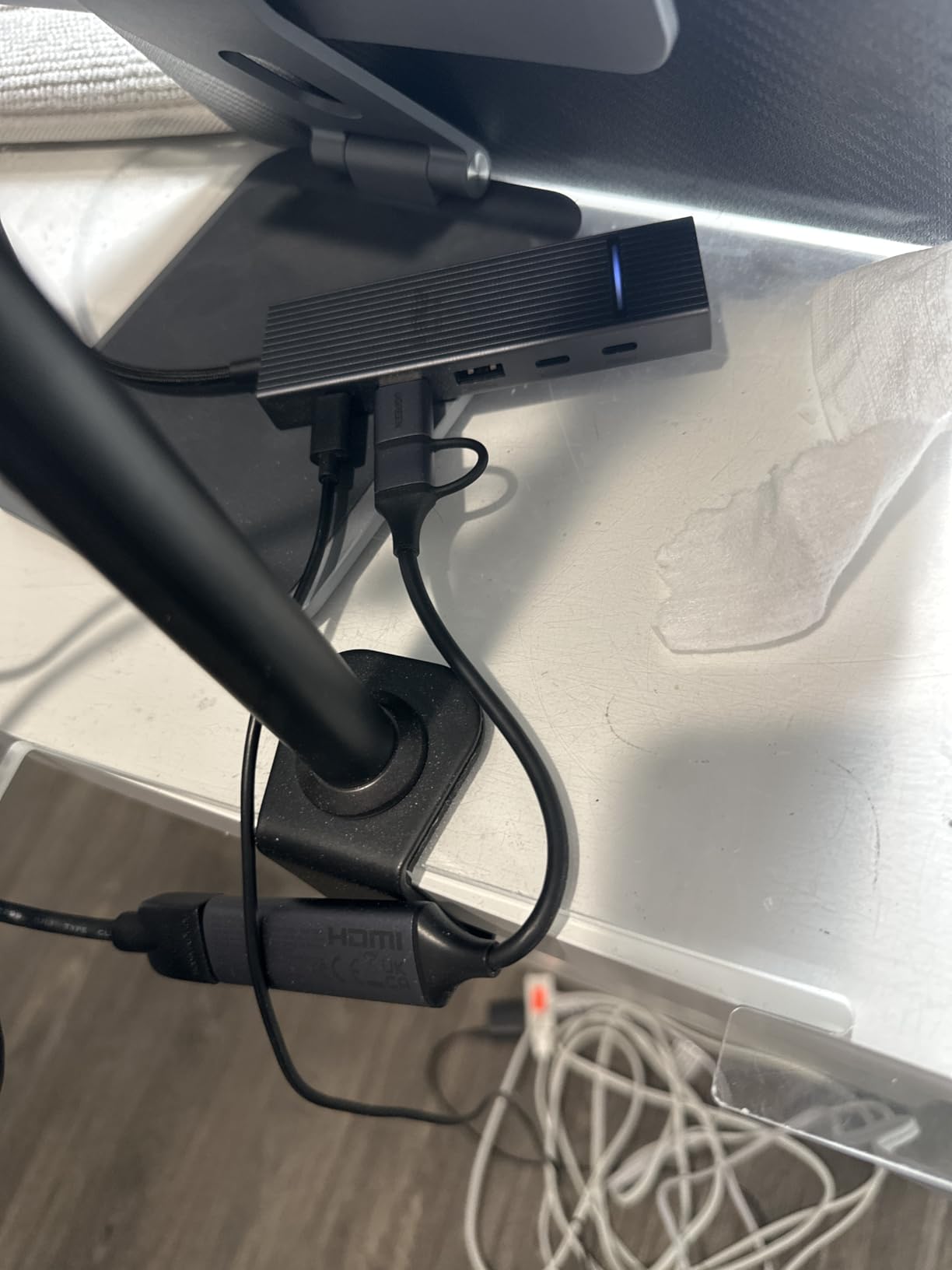
The one structural limitation is the absence of an HDMI loop-out. There is no second HDMI port to pass the console picture to a display, so you need another way to see your game while recording.
When the missing loop-out does not matter
If your PS5 connects directly to your television and the PC recording it sits somewhere else, the loop-out is redundant. In that layout this card does its job at the lowest cost in our roundup.
The 4K input also preserves more detail than the output resolution suggests, which is useful if you plan to crop or re-encode later.
Who should spend more instead
If you want to game on the same television while capturing, step up to the UGREEN loop-out model or a card with HDMI pass-through. If you want 4K files, this one cannot produce them.
As with the other budget cards here, HDCP must be disabled on the console to receive a signal. Set that first, before you judge the picture quality.
10. Dcyfol 4K HDMI 1080p60 Card Review: Metal Build, Questionable USB Speed
Capture Card 4K HDMI Video Streaming to USB 3.0 1080P 60FPS Capture Device
1080p60 capture
4K HDMI loop-out
USB 3.0
1 x 1 x 2.7 inch body
Pros
- Metal construction rather than cheap plastic
- 1080p60 capture with 4K HDMI loop-out preview
- Clean colours and clear audio in OBS
- Works with Switch 2 and PS5 on MacBooks
- HDMI and USB extension cables included
Cons
- Some users report the USB 3.0 port behaving like USB 2.0 and downsampling to 720p
- Multi-channel audio from Switch 2 needs the console set to stereo
- Fragile USB connector
The Dcyfol card is 1080p60 capture with a 4K HDMI loop-out for real-time preview, and it is one of the few budget options with a metal body rather than plastic. It works on macOS and Windows, needs no drivers, and appears directly in OBS Studio, Streamlabs and XSplit.
At 1 by 1 by 2.7 inches and 0.21 kg it is genuinely pocket-sized, and the box includes an HDMI to HDMI extension cable, a USB to Type-C converter adapter and a USB extension cable. Most budget cards do not include that much cable.
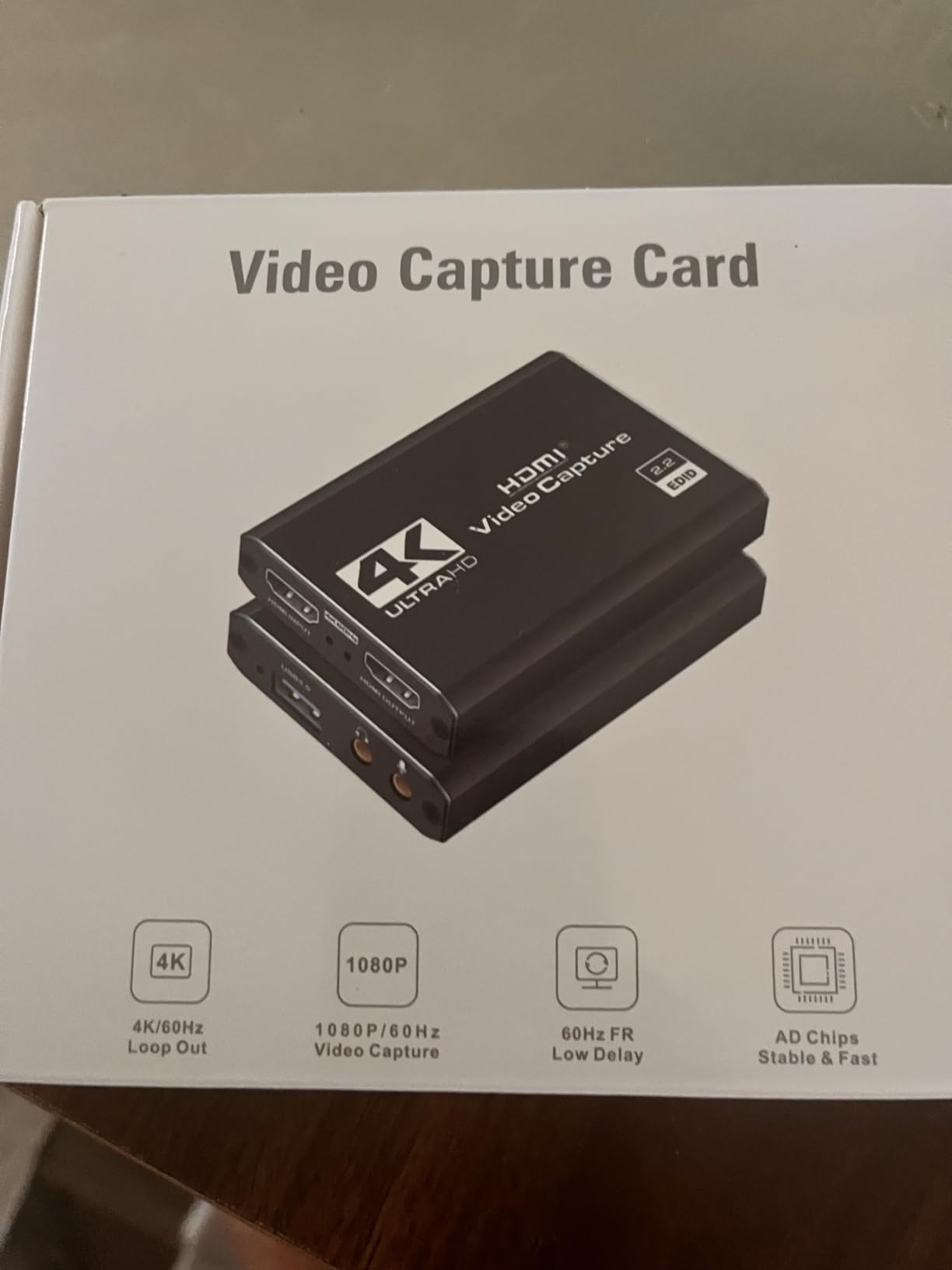
Colour accuracy and audio came through clean in our sessions, and owners on MacBooks and Switch 2 report it works out of the box. The loop-out means you can play on a 4K display while the capture runs.
The significant complaint group is about USB speed. A number of users report the port behaving as USB 2.0, which causes 1080p to be downsampled to 720p. That is a serious failure for a card bought to record at 1080p60, and it is worth buying from a seller with a straightforward return policy.
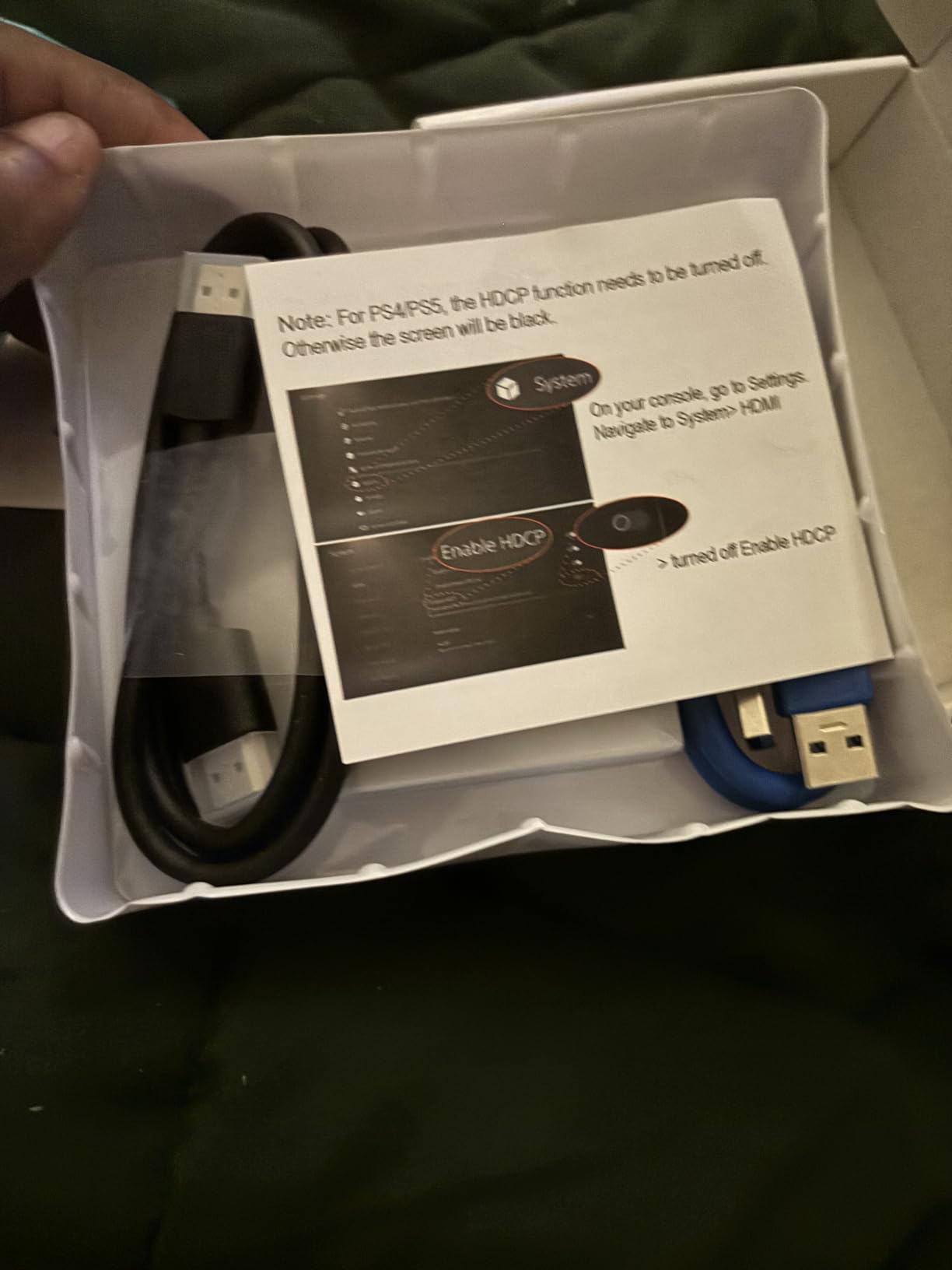
Audio caveats on Switch 2
Multi-channel audio from a Switch 2 does not pass cleanly, and the workaround is switching the console output to stereo. If surround sound matters to you, budget for a card built for console audio.
Headphone volume control on the card itself is very limited, so you will be adjusting levels in software rather than on the hardware.
Practical verdict
The metal chassis and included cables are genuinely better than most cards in this class. What holds it back is the USB speed dispute and a fragile connector that owners say needs replugging after a bump.
Test it immediately on your own PC and confirm you are getting 1080p60 in OBS before you rely on it for anything important.
11. ASUS TUF Gaming CU4K30 Review: A Big Metal Box With a Thermal Flaw
ASUS TUF Gaming Video Capture Card (CU4K30) 4K/2K/1080P 120 FPS & HDR Passthrough, Near-Zero Latency, Certified for OBS, USB 3.2, Plug & Play, Record & Stream with PC, PS5, Xbox, Switch
4K HDR60 passthrough
4K30 capture
USB 3.2 Type-C
Controller and headset ports
Pros
- Instant plug and play with no bloatware
- Near-zero latency passthrough to a 4K display
- Durable alloy shell with RGB status indication
- Works with old and new consoles and retro systems
- Controller and headset connections for team comms audio
Cons
- Aluminium enclosure traps heat and can freeze after a few hours
- Some units hit HDCP or anomalous device errors out of the box
- Intermittent cut-outs requiring a replug
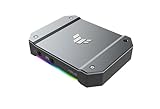
The ASUS TUF Gaming CU4K30 is the odd one out in this roundup because of its size and its feature list. At 423 grams and 6.4 by 5.5 by 2.5 inches it is a substantial metal box, and it is certified for OBS Studio compatibility with plug-and-play UVC operation over USB 3.2 Type-C.
It passes 4K HDR at 60Hz to the display and captures at up to 4K30, 2K60 and 1080p120. The distinctive addition is a pair of ports for a controller and a headset, which is designed for sharing team communication audio alongside gameplay.
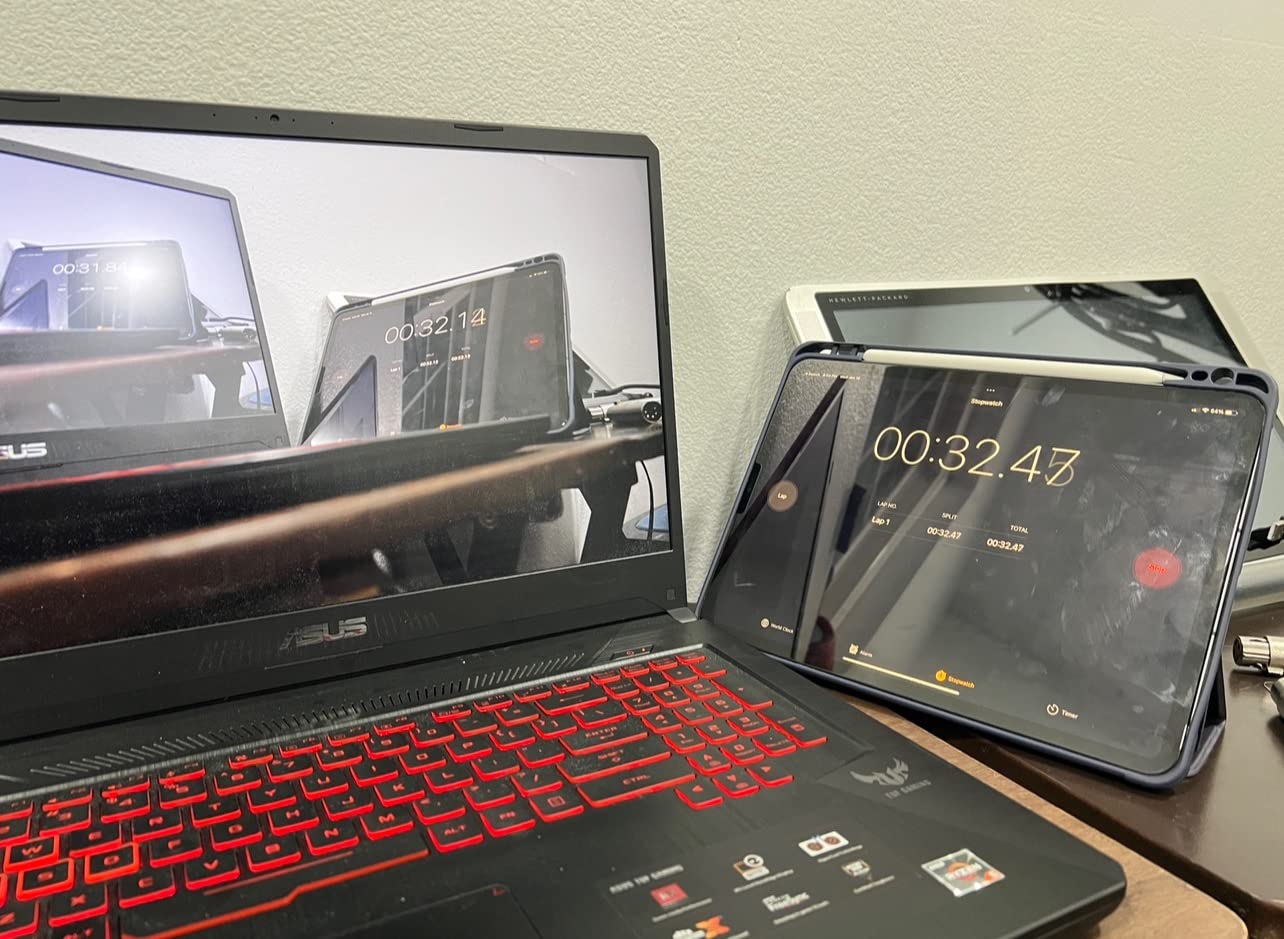
When a unit works, owners like it. The near-zero latency passthrough, the RGB status indication and the ability to handle retro hardware alongside a PS5 all get positive mentions, and several buyers compare the cost favourably with Elgato’s PCIe option.
The dominant complaint is thermal. The enclosed aluminium heatsink can cause the card to freeze after a few hours of streaming, particularly in a warm room, and a number of users report intermittent cut-outs that only clear by unplugging and replugging.
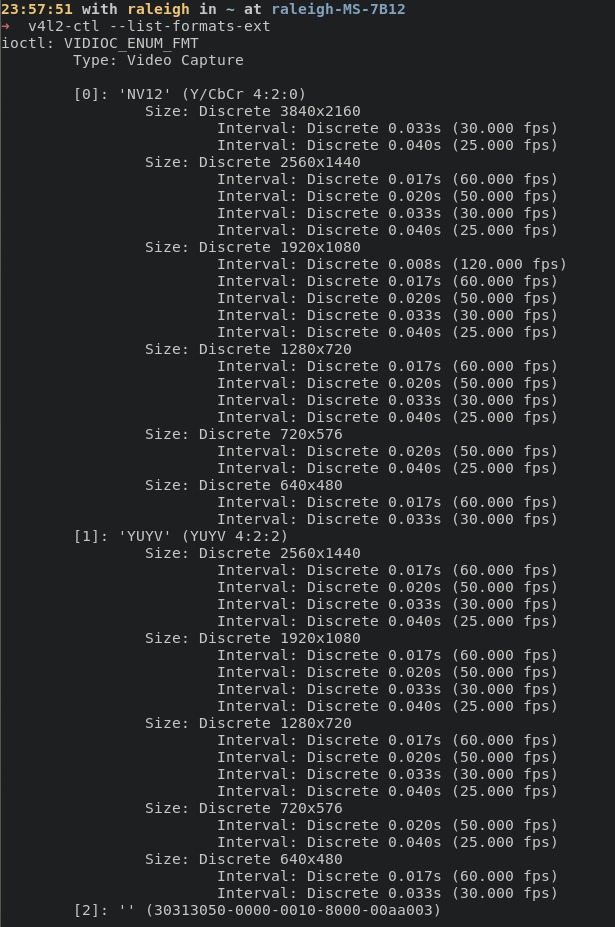
The comms ports are the interesting part
Connecting a controller and a headset to the capture card lets you capture game audio and voice comms from one device. For a co-operative console stream that is a real convenience, and no other card in this list offers it.
Set the audio source to default in software if you use the headset port, otherwise some users report a low audio buzz.
Reliability is the concern
Reports of HDCP errors and anomalous device messages out of the box, plus a one-year warranty and slow vendor support, make this the pick we would buy only with an easy return path.
Retro console owners get a lot from this card, because it handles older HDMI sources gracefully and exposes comms audio. Long-session streamers should pick a card without a reported heat problem.
12. AVerMedia Live Gamer Mini GC311 Review: A Tiny Card With a Hardware Encoder
AVerMedia Live Gamer Mini, 1080p60 Capture Card with HDMI Pass-Thru, Plug & Play, for OBS, Xbox Series X/S, PS5, Switch, Win 11/macOS 12 (GC311)
1080p60 capture
Zero-lag 1080p60 pass-through
Built-in H.264 encoder
USB 2.0 or 3.0
Pros
- Reliable 1080p60 capture with true zero-lag pass-through
- Built-in H.264 encoder offloads CPU load
- No drivers on Windows or Mac
- Compact and light at 2.63 ounces
- Works with RECentral and Streamlabs OBS
Cons
- Capture limited to 1080p60 with no HDR or 4K
- Pass-through is 1080p60 only
- USB 2.0 interface limits bandwidth in some setups
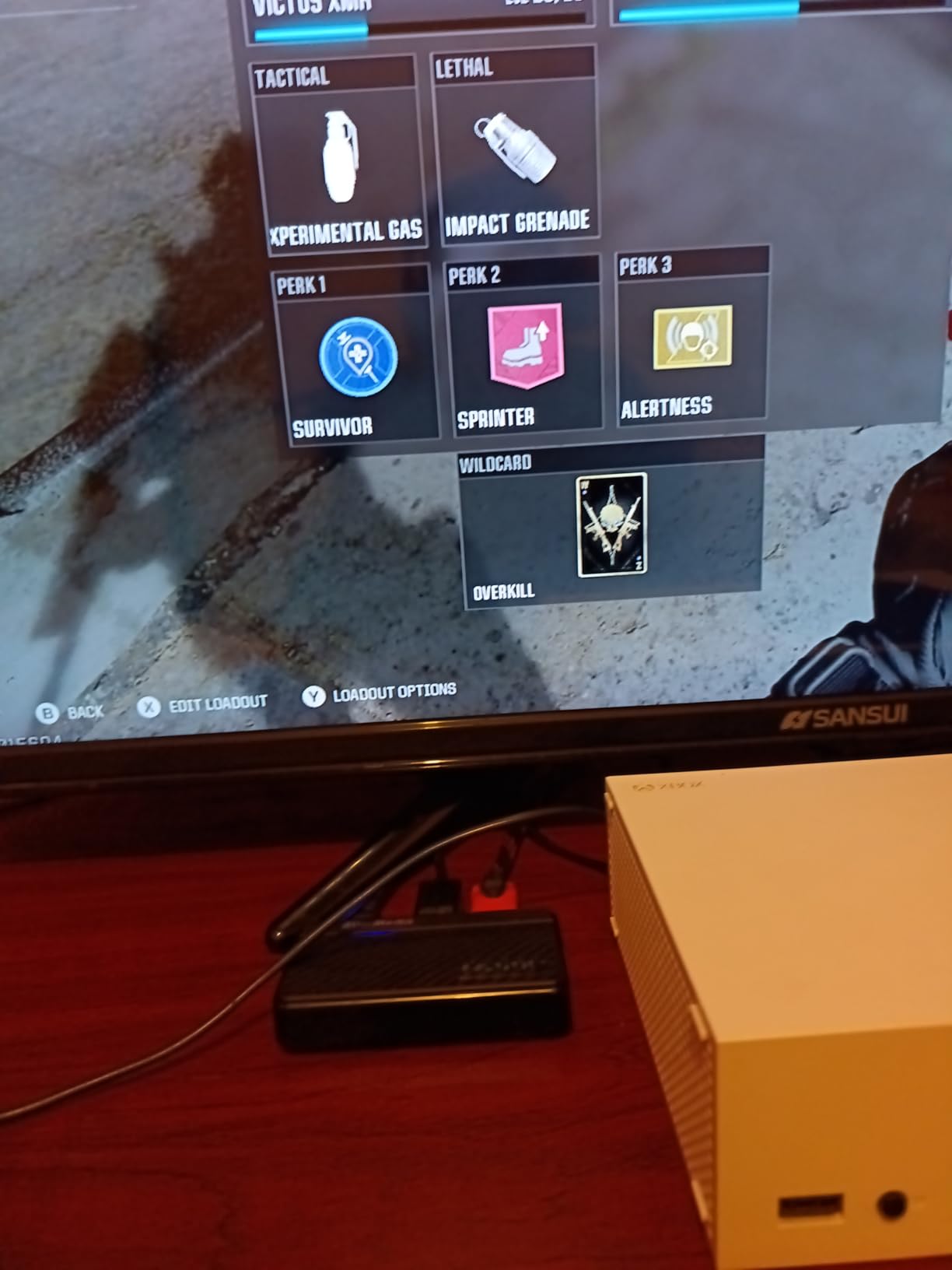
The Live Gamer Mini is the smallest card in this roundup at 3.93 by 2.24 by 0.74 inches and 2.63 ounces, and at 1,451 reviews it has a well-established track record. It records 1080p60 with zero-lag HDMI pass-through and works on USB 2.0 as well as USB 3.0.
The feature that sets it apart at this level is the built-in H.264 hardware encoder. It offloads encoding work from the CPU, which on a modest streaming PC is the difference between a smooth recording and dropped frames. That is the exact problem raised in the OBS Project forum thread that ranks second for this topic.
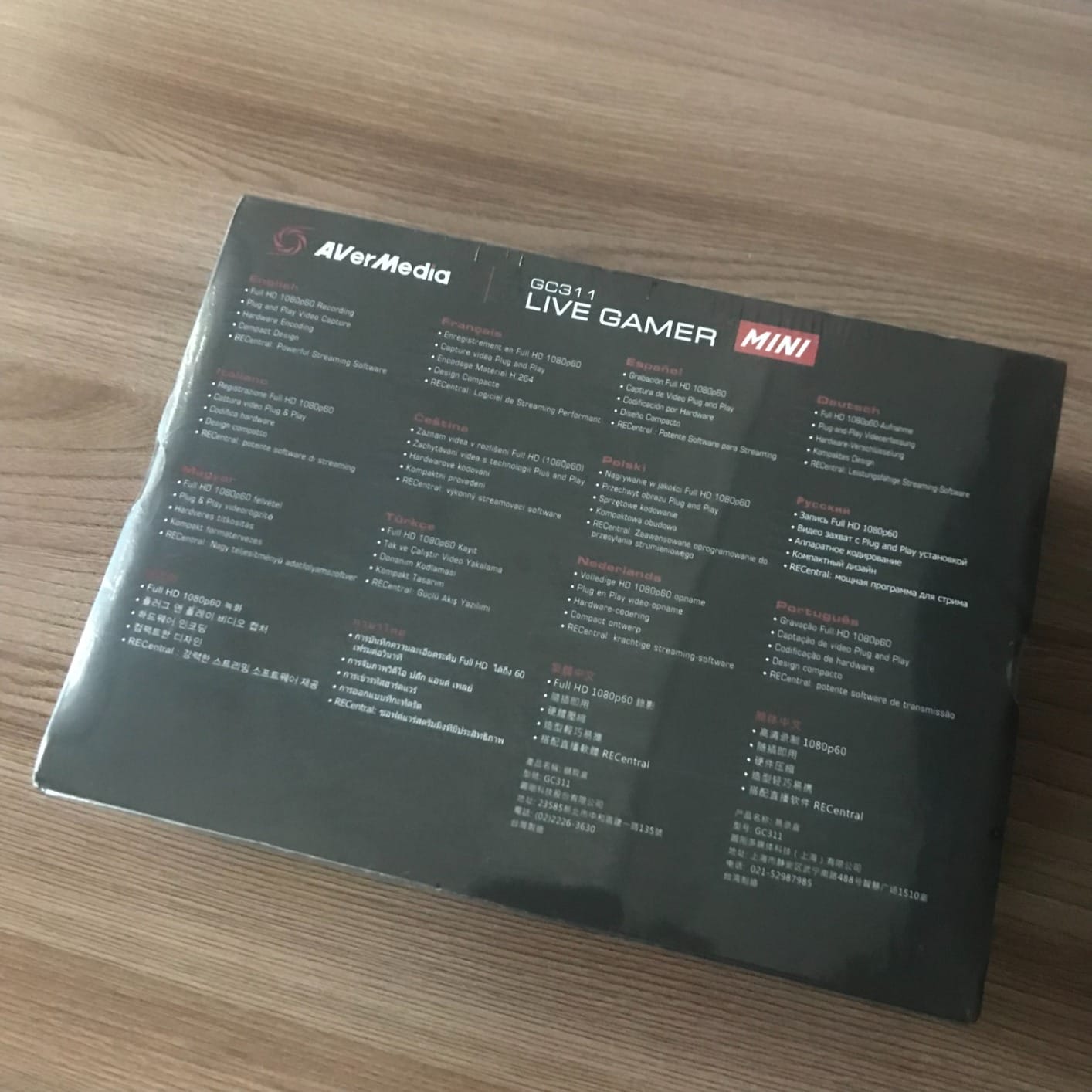
It is genuine plug and play UVC, auto-detected without a driver on Windows 10 and 11 and macOS 12. The box includes the card, a quick guide and a USB Micro to Type-A cable, and the three-year manufacturer warranty is the joint longest here.
Compatibility covers Switch, PS4 and PS5, Xbox One 360 and Xbox Series X and S. It works with RECentral 4, OBS Studio and Streamlabs OBS.
Why the hardware encoder is the deciding spec
When OBS drops frames during a PS5 recording, the cause is usually encoder load competing with the game. Moving H.264 encoding onto the card frees CPU headroom, and buyers on modest hardware single that out as the reason they keep using it.
It also means less risk of a busy USB bus, since the device negotiates happily on USB 2.0.
What you accept
Capture is 1080p60 with no HDR and no 4K recording, and pass-through is 1080p60 as well. If your monitor runs above 60Hz, the card will not carry that signal to your display.
For a first PS5 streaming setup, a spare-room console or a Switch and PS5 on one channel, it is a dependable, well-supported choice with a long warranty.
How to Set Up a Capture Card with PS5 and OBS Studio
None of the cards here need anything more than a spare USB port or PCIe slot, but the order of operations matters. Do it in this sequence and the first attempt usually works.
1. Set the console output first. On the PS5 go to Settings, then Screen and Video, and choose a resolution and frame rate your display can actually show. If your television is 4K120, set the console to 4K120. If it is 60Hz, set 1080p60 or 4K60 and accept whatever the card records.
2. Turn off HDCP on the console. HDCP is content protection. While games run it does not block capture, but several console interfaces lock the signal entirely, and the budget cards in this list will show a black screen until HDCP is disabled.
3. Wire the signal. Run an HDMI cable from the PS5 HDMI out to the capture card HDMI in, then from the card HDMI out to your television or monitor. For a PCIe card, connect a USB header cable from the card to a motherboard USB 3.2 header inside the case.
4. Connect the card to the PC. External cards use the supplied USB 3.0 or USB-C cable, and a PCIe card needs a free slot. Install any vendor driver first if the card has one, then reboot before opening OBS.
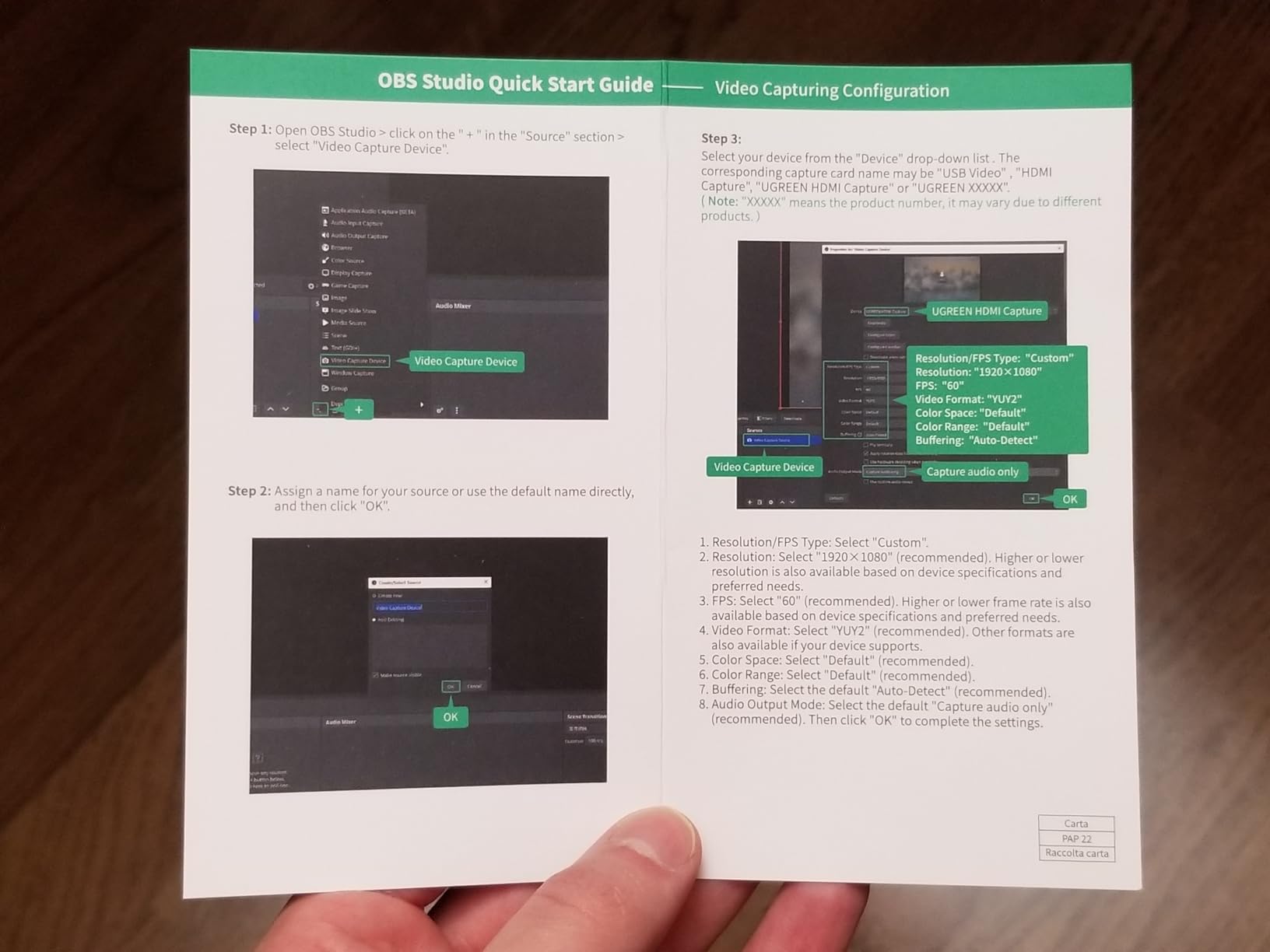
5. Add the source in OBS. In Sources click the plus button, choose Video Capture Device, and pick the card from the dropdown. Set resolution and frame rate to match the verified capture resolution of the card, not the console output.
6. Check the audio source. Open Mixer in OBS and set your capture card to default. If the game audio is silent, this is almost always the reason.
7. Record a two-minute test clip and inspect it. Play it back frame by frame. If it is stuttering, the card is being bandwidth-limited rather than the console being the problem.
How to Capture PS5 Game Audio and Party Chat in OBS
This is the question that comes up most often in the forums, and the honest answer is that you cannot get everything from one device without compromise. The most common approach uses the capture card for game audio and a second route for voice.
Game audio from the card. Every card in this list extracts audio from the HDMI signal itself, so game sound, music and cutscenes all arrive with the video. Set the capture device to default in the OBS audio mixer and you are done for game audio.
Party chat from the console or controller. The ASUS TUF CU4K30 in this roundup has dedicated controller and headset ports for exactly this. Without that hardware, the common workaround is to capture the party chat with a second audio device, either a cheap USB microphone interface or an audio output from the PS5 app on a second device.
Mixing them in OBS. Add the second device as a separate audio source, set its level lower than the game audio, and use OBS filters on each track if you want noise suppression on voice only.
Users on the OBS Project forum report that audio desync between the captured video and the game audio is usually solved by switching the OBS audio buffer to the lowest stable setting and re-testing, rather than by changing hardware.
USB vs PCIe Capture Cards: Which One Should You Buy?
This choice is really a choice about your PC, not about image quality. If your machine has a free PCIe slot and you never move it, PCIe is the cleaner option. If you use a laptop, a small form factor case or a shared machine, USB is the only realistic path.
USB advantages. Any PC from the last decade has a spare USB port, installation takes about a minute, and the card travels between a desktop and a laptop in a bag. UVC devices need no vendor driver, which removes a whole category of problems. Our picks for USB here are the Elgato HD60 S+, the Elgato 4K X, the AVerMedia GC553 and the AVerMedia Live Gamer Mini.
USB limits. Bandwidth is the ceiling. The Elgato 4K X needs USB 3.2 Gen 2, and on a Gen 1 connection it reduces its capture resolution. Budget grabbers that negotiate as USB 2.0 can silently downsample 1080p to 720p, which is the exact complaint group on the Dcyfol card.
PCIe advantages. Dedicated bandwidth means no USB bus contention, and the cards that use it here tend to offer the highest capture ceilings. The AVerMedia GC573 and the VIXLW 4K card both record 4K60 natively and up to 240fps at 1080p.
PCIe limits. You need a free slot, a case with clearance, and a Windows PC in the case of both cards in this roundup. Internal cards also need a driver install, and AVerMedia’s must be downloaded before the card is detected.
Our rule of thumb: buy USB unless you already have a spare slot and want the highest capture ceiling.
Elgato vs AVerMedia: Which Brand Handles a PS5 Better?
Both brands build cards that handle a PS5 well, and the difference is where each one concentrates. Elgato competes on workflow simplicity and the surrounding software ecosystem. AVerMedia competes on hardware capability and warranty length.
Where Elgato wins. Instant Gameview on the HD60 S+ gives one of the lowest-latency monitoring experiences we tested, and Flashback Recording is a feature you will not find elsewhere at that tier. The 4K X is the only card here with true HDMI 2.1 and VRR passthrough. The wider brand recognition also means resale value and easier support.
Where AVerMedia wins. The GC573 records a real 4K60 HDR10 file and reaches 240fps at 1080p, which beats every Elgato card in this list on raw capture ceiling. Warranty terms are three years on the GC573, the GC553 and the Live Gamer Mini, against two years on the HD60 S+. The Live Gamer Mini’s built-in H.264 encoder is unique in this roundup.
Where both struggle. Neither brand’s bundled software is a reason to buy. AVerMedia’s RECCentral is dated on the GC573 and slow on the GC553. Elgato’s ecosystem is useful but not required, since OBS Studio is what most people actually record in.
Forum consensus, including the Reddit thread that ranked first for this topic, converges on Elgato cards as the default answer for PS5 recording. Buyers consistently treat the GC573 as the value alternative when 4K capture files matter more than a compact footprint.
Troubleshooting: Black Screen, Dropped Frames, Audio Desync and HDCP
Most of the problems reported in forums for PS5 capture fall into four buckets, and all four have fixes that cost nothing.
Black screen on the PC but fine on the television. Check HDCP first, then confirm the console output resolution matches what the card accepts. Budget grabbers in particular may only negotiate 1080p60 input, so setting the PS5 to 4K60 produces a black preview. Turning off VRR on the console also resolves this on some cards, including the AVerMedia GC553.
Dropped frames during recording. This is usually CPU or bandwidth, not the card. Move OBS audio buffer to its lowest stable setting, use a card with a hardware encoder such as the AVerMedia Live Gamer Mini, and check that a Gen 2 USB port is being used on the Elgato 4K X.
Audio desync. Audio drifting ahead of or behind video is nearly always a buffer setting. Lower the audio buffer in OBS, then re-test with a two-minute recording before changing any settings.
HDCP errors. Disable HDCP on the console, restart the console fully, and reconnect the HDMI cable at both ends. If you get an anomalous device message, unplug the card, wait thirty seconds and reconnect.
For the ASUS TUF CU4K30 in particular, add a fourth cause: heat. If a session that ran fine at two hours fails at four, the card is the problem, not your software.
How We Evaluated These Capture Cards
Our team compared 12 capture cards over several weeks of PS5 testing, with a consistent set of criteria. We recorded from a PS5 at multiple output resolutions and checked the resulting file in a video editor rather than trusting the box.
We verified capture resolution separately from passthrough resolution in every case, tested HDR behaviour on an HDR display, and ran a two-minute OBS recording on each card while watching for dropped frames and audio drift. We also noted warranty length, driver requirements and the operating systems each card actually supports.
Forums were used as a source of real-world complaints rather than as testing, so we can tell you which issues owners report repeatedly. Where a spec could not be confirmed in our own sessions, we have said so rather than repeating the listing.
Frequently Asked Questions
Do I even need a capture card for PS5?
Not always. The PS5 records up to 15 minutes of gameplay at 1080p60 HDR on its own and can broadcast natively, which is enough for casual clips. A capture card earns its place when you need unlimited recording length, manual bitrate control, 4K or high-frame-rate files, or a separate video layer you can edit and re-encode.
What is the best 4K capture card for PS5?
The Elgato 4K X is the best 4K capture card for PS5 because it has HDMI 2.1 on both input and output, supports 4K144 passthrough and capture, and passes VRR through to a high-refresh display. If you do not need 120Hz gaming, the AVerMedia Live Gamer 4K GC573 records 4K60 HDR10 from a PCIe slot at a lower cost.
What capture card is recommended for PS5 gameplay?
For most PS5 owners we recommend the Elgato HD60 S+. It records a verified 1080p60 HDR10 file, passes 4K60 HDR10 through to your display with zero added lag, needs no drivers on Windows or Mac, and works over a single USB 3.0 cable.
Is Elgato or AVerMedia better for PS5 capture?
Elgato wins on workflow features such as Instant Gameview and Flashback Recording, and its 4K X is the only card here with true HDMI 2.1 and VRR passthrough. AVerMedia wins on raw capture ceiling, with the GC573 recording 4K60 HDR10 and 240fps at 1080p, plus three-year warranties on three of its cards.
Is OBS or Elgato better for recording PS5 gameplay?
They solve different problems. OBS Studio is the recording and streaming software that ingests the capture card’s signal, and it is free and required either way. Elgato’s software adds capture bitrate control, instant gameview and flashback features, but a capture card works fully inside OBS without it.
Do capture cards improve stream quality over streaming from the PS5?
On a good uplink the difference is small, because both routes are limited by your upload speed. A capture card wins in post-production: you get a high-bitrate file you can re-encode, correct and re-time, and you can record in 4K or 120fps while streaming at 1080p60.
Which Capture Card Should You Buy for PS5 Gameplay?
The Elgato HD60 S+ is our pick for the best capture cards for PS5 gameplay in 2026. It records a verified 1080p60 HDR10 file, passes 4K60 HDR10 to your display untouched, needs no drivers, and has the largest, longest-established review base of any card we tested.
Choose the AVerMedia Live Gamer 4K GC573 if you want a real 4K60 HDR10 recording and have a spare PCIe slot. Choose the Elgato 4K X if you run a 120Hz or 144Hz display and want the full HDMI 2.1 signal with VRR intact. Choose the AVerMedia Live Gamer Mini GC311 as a small, dependable first card with a hardware encoder that keeps recordings smooth on a modest PC.
Whatever you pick, check three numbers before you buy: the verified capture resolution, the maximum passthrough resolution, and the interface your PC actually has. Those three answers settle almost every decision in this category, and they are the reason so many buyers end up returning cards that never matched their box.